Conditional logic
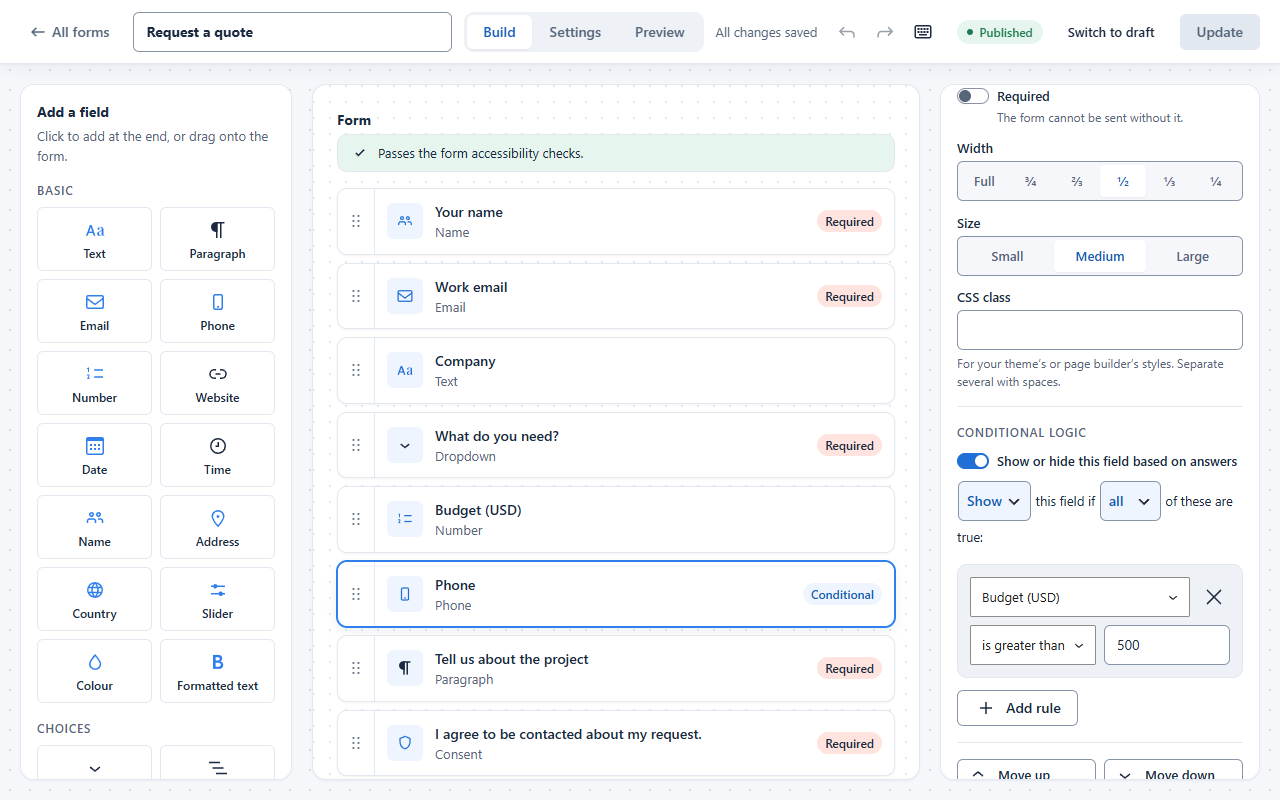
Show or hide a field depending on other answers. Rules read as sentences, for example: Show this field if all of these are true: Budget is greater than 500.
- Click the field you want to show or hide.
- In its settings, under Conditional logic, turn on Show or hide this field based on answers.
- Choose Show or Hide, and all or any of the rules.
- Build each rule: pick a field, a condition and a value. Press Add rule for more.
Conditions you can use:
- is
- is not
- contains
- does not contain
- starts with
- is greater than
- is less than
- is before
- is after
- is checked
- is not checked
- is empty
- is not empty
Each field only offers the conditions that make sense for it, such as “is before” for dates. Rules run in the visitor’s browser and again on your server, so a hidden field is never checked or stored, even if it is required. The builder warns you if two rules depend on each other in a loop.
Last updated: