Field widths
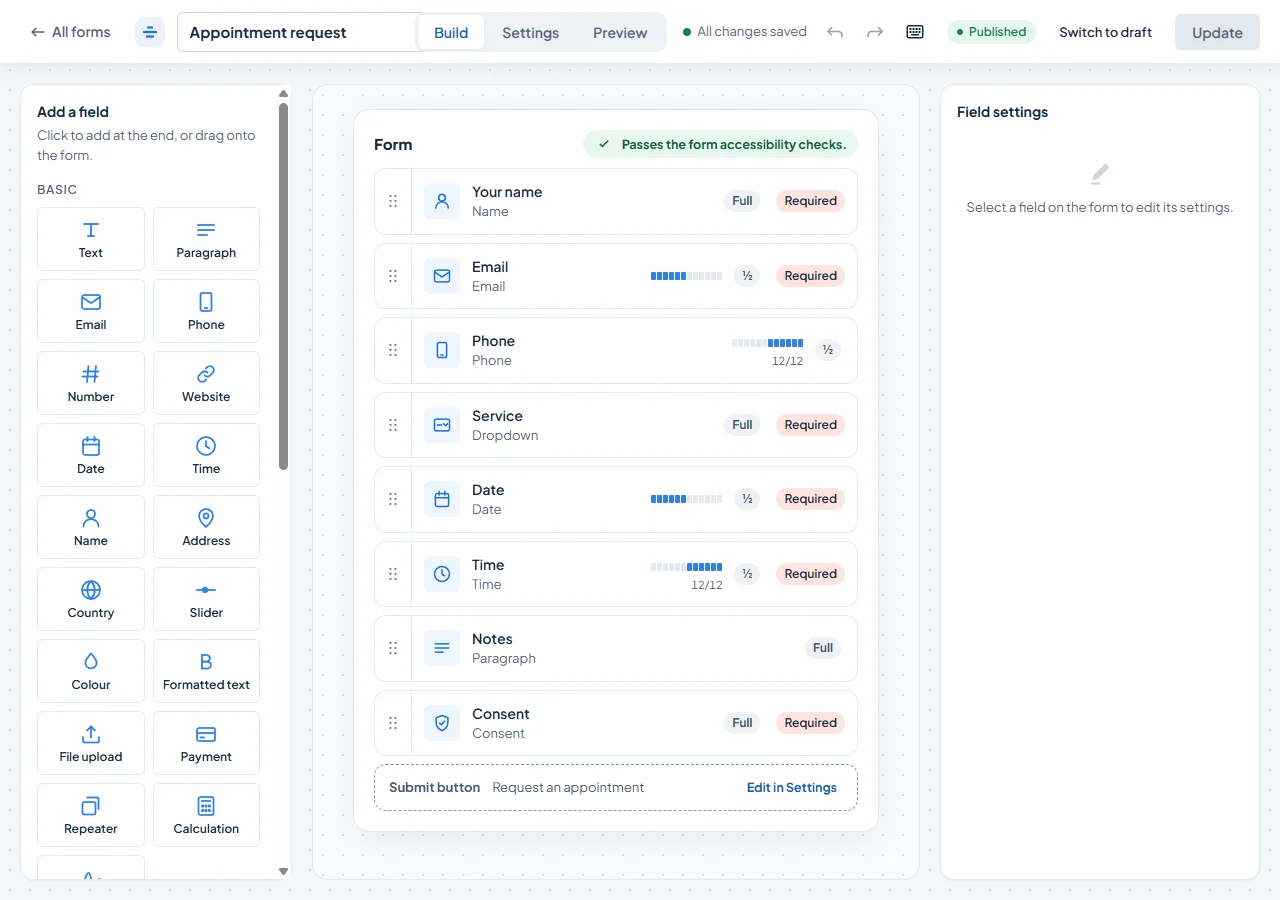
Every line of a form is 12 columns wide. Each field takes some of them, and fields that fit on the same line sit side by side.
Pick a width
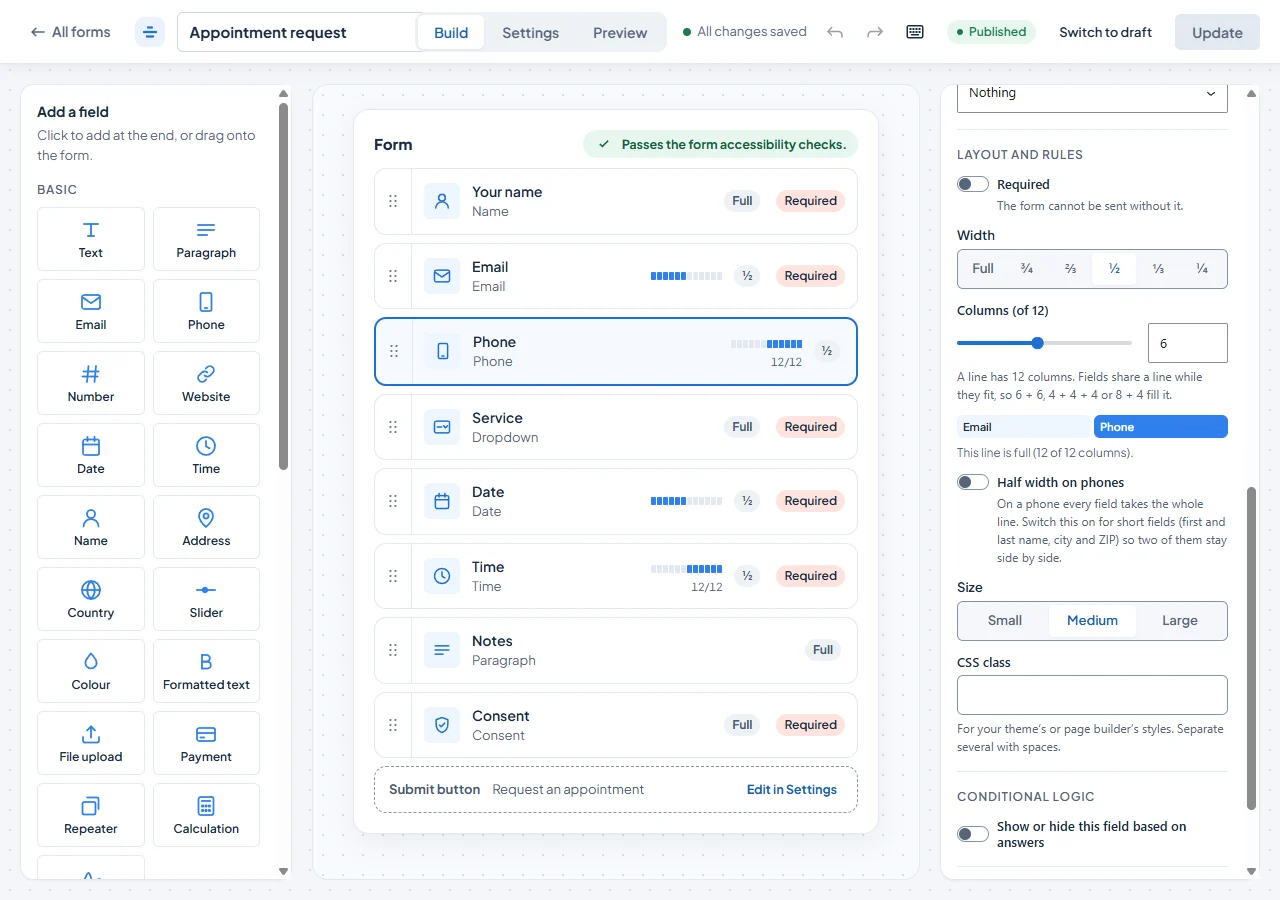
Select a field in the builder and open its settings. Under Width choose Full, ¾, ⅔, ½, ⅓ or ¼, or any number of columns from 1 to 12. The builder shows where the field sits on its line, and how much of the line is still empty.
You can also drag along the field’s column strip in the builder to make it wider or narrower. The Width setting still works with the keyboard.
Examples
- 8 + 4: a wide text field with a narrow one beside it, such as a street and a house number.
- 4 + 4 + 4: three equal fields on one line, such as a city, a state and a postcode.
- 6 + 6: a first and a last name.
Good to know
- Forms made before this change keep their widths.
- A line that adds up to less than 12 stays as drawn instead of stretching to fill the width.
- On a phone every field takes the full width, unless you switch on Half width on phones for it. Two short fields with that toggle on, such as first and last name or city and ZIP, stay side by side.
For developers: a field has a columns property (1 to 12). The older width names still work.
Last updated: