Submit rules
FillKite Pro, every plan. Submit rules stop a form from being sent while certain answers are given, and tell the visitor why. Use them when a form should only go through once something is true, such as an order being paid.
Set one up
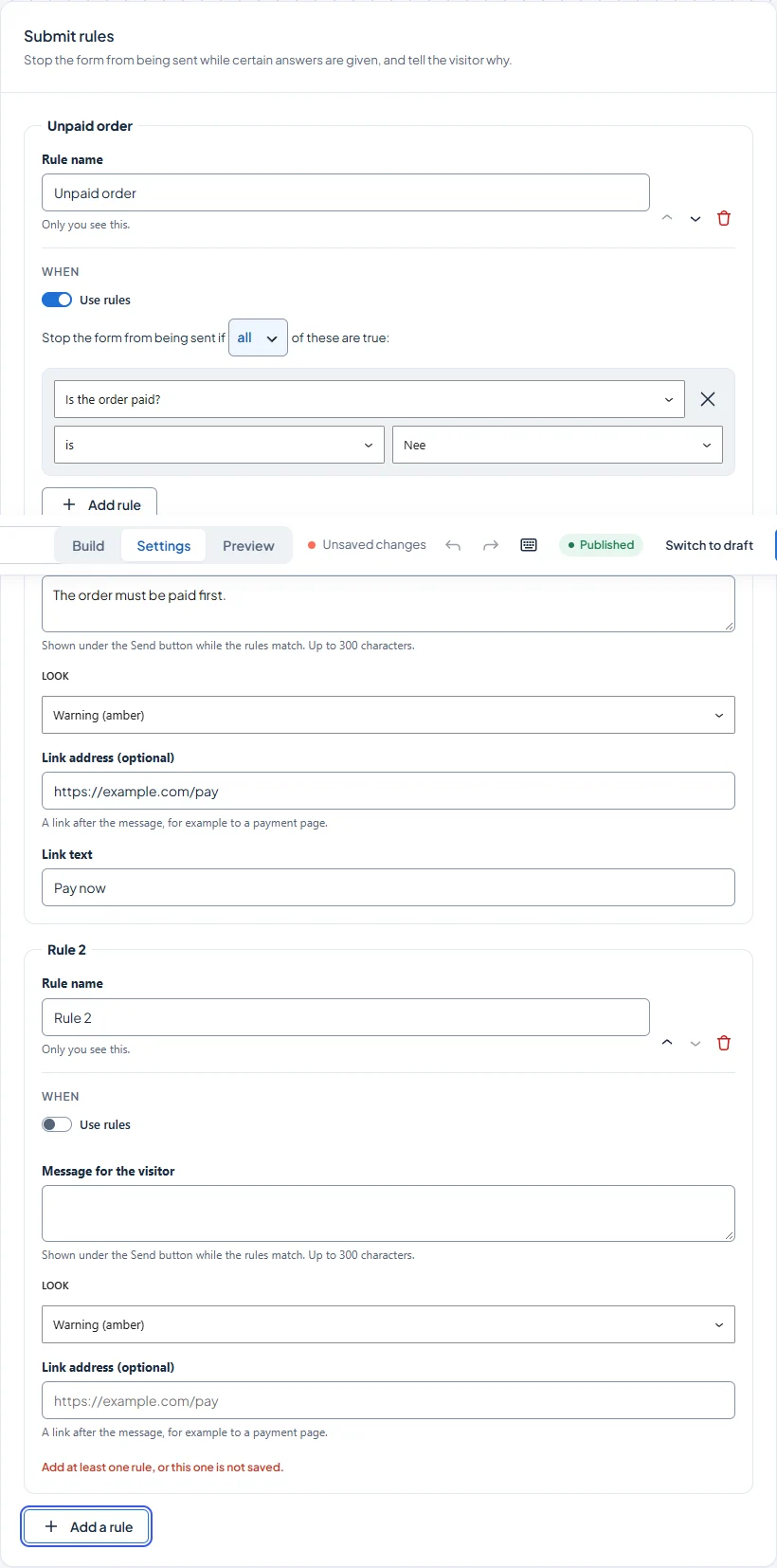
- Open the form, then the Settings tab and Submit rules.
- Build the rule the same way as field logic: choose a field, a condition and a value. For example, Is the order paid? is No.
- Write the message the visitor will see, such as “The order must be paid first”. You can add a link, such as “Pay now”.
- Choose a warning or an error look, then save the form.
What the visitor sees
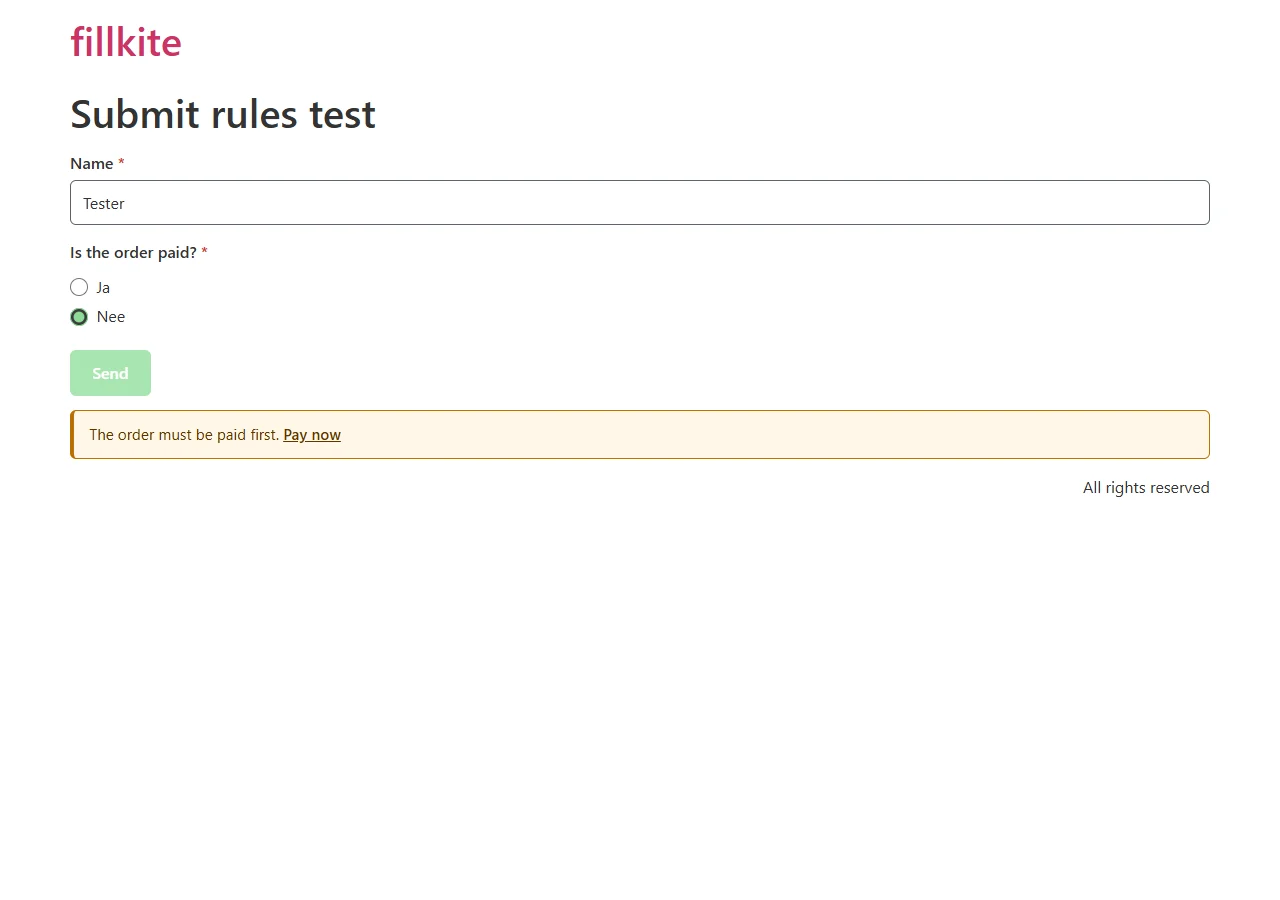
While a rule holds, the Send button looks faded and your message appears under it, with the link if you added one. For screen readers the button is marked as unavailable, but it stays reachable with the keyboard, so nobody is left wondering why the form will not send. As soon as the answers change and no rule holds, the message goes away and the form can be sent.
Checked twice
The same rules are checked again on your server when the form is sent, so they also work when JavaScript is off or someone tries to skip the browser. If a rule holds, the entry is not saved.
In free FillKite
FillKite free shows Submit rules as a locked card with a PRO badge in the form settings, so you can see what it does. Submit rules need FillKite Pro 1.2.0 and FillKite 1.2.0 or newer.
Last updated: