WordPress Form Entries: 5 Simple Ways to Keep Every One
In short:
- WordPress form entries are the submissions people send through your forms. Whether they are saved depends entirely on your form plugin.
- Contact Form 7 and WPForms Lite do not save entries at all; they only email them. If an email fails, the entry is gone.
- Five ways to keep every one: a form plugin with an inbox, a storage add-on, Google Sheets, a webhook to your CRM, and regular exports.
- Saving is half the job. Statuses, notes, search and a reply timer turn a list of entries into a list of leads you actually follow up.
- FillKite saves every entry before any email is sent, in an inbox inside WordPress, with export to CSV, Excel, JSON and PDF.
WordPress form entries are easy to take for granted until one goes missing. A customer says they filled in your form last week; you search your inbox and find nothing. Was it spam? Did the email fail? Without a saved copy of the entry, there is no way to know.
This guide explains where WordPress form entries go in popular plugins, five simple ways to keep every one, and how to manage them so each entry becomes a reply rather than a forgotten row.
Where do WordPress form entries go?
When someone presses Send, the form plugin does two things, or sometimes only one: it emails the entry to you, and it may save it in your WordPress database. Many people assume every plugin does both. They do not.
| Plugin | Emails entries | Saves entries in WordPress |
|---|---|---|
| Contact Form 7 | Yes | No (needs an add-on) |
| WPForms Lite | Yes | No (paid plans only) |
| Elementor Pro Form | Yes | Yes (Submissions) |
| FillKite | Yes | Yes, before any email is sent |
If your plugin only emails WordPress form entries, the email is the only copy. Email is not built to be a database: messages land in spam, get deleted, sit in one colleague’s inbox, or never arrive because of a delivery problem.
Why you should save every entry
- Email fails more often than you think. A missing SPF record, a full mailbox or a changed password can stop notifications silently. Our guide to a form not sending email covers the causes.
- Teams need one shared view. Five people with five copies of an email cannot tell who replied.
- You need history. Which campaign brought the most enquiries last quarter? Without saved WordPress form entries, you cannot answer.
- Privacy requests. When someone asks what data you hold, you need one place to search.
The five ways at a glance
| Way | Best for | Effort |
|---|---|---|
| A form plugin with an inbox | Most small businesses | Low: it is built in |
| A storage add-on | Keeping Contact Form 7 | Low, but storage only |
| Google Sheets | Sharing with people outside WordPress | Medium: connect a Google account |
| A webhook to your CRM | Teams that sell from a CRM | Medium: set up once |
| Regular exports | A backup outside the site | Low: a monthly habit |
These are not either-or choices. Many sites use the first and the last together: an inbox for daily work, and a monthly export for safekeeping.
Way 1: Use a form plugin with an inbox
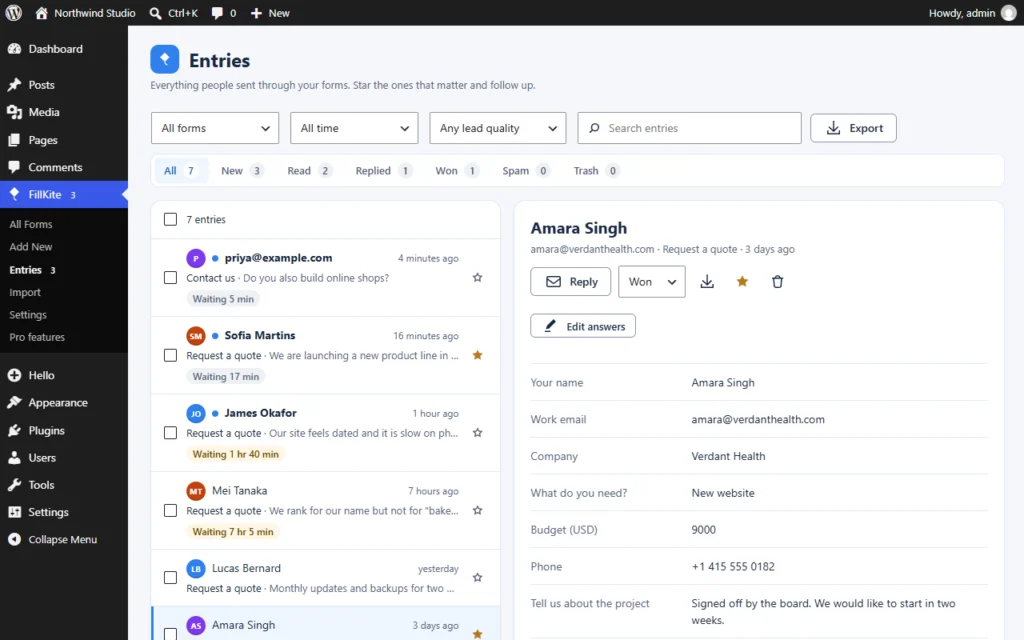
The simplest option is a form plugin that saves WordPress form entries as a core feature. In FillKite, every entry is stored in your own WordPress database before any email is sent, and appears in FillKite → Entries, an inbox with filters, search and a detail view.
Because the entry is saved first, a failed email never loses a lead. FillKite retries failed notifications after 5 minutes, 30 minutes and 2 hours, and marks the entry “Email not sent” with a Send again button if they keep failing.
Way 2: Add a storage add-on to your current plugin
If you use Contact Form 7 and want to keep it, add-ons such as Flamingo or Contact Form 7 Database Addon save submissions in WordPress. They are free and solve the basic problem: you have a copy.
The trade-off is that storage is all they do. You get a list, not an inbox: usually no statuses, no reply tracking, and another plugin to maintain. If you find yourself adding more plugins around the list, a form plugin with an inbox may be simpler. Our Contact Form 7 alternative and WPForms alternative pages compare what you get instead. You can import Contact Form 7 forms into FillKite in one go.
Way 3: Send entries to Google Sheets
A spreadsheet is a familiar place to review WordPress form entries, share them with people who do not log in to WordPress, and build simple reports. FillKite Pro can add a row to a Google Sheet for every new entry, with the form’s fields as columns. The entry is still saved in WordPress, so the sheet is a copy, not the only record.
Way 4: Send entries to your CRM with a webhook
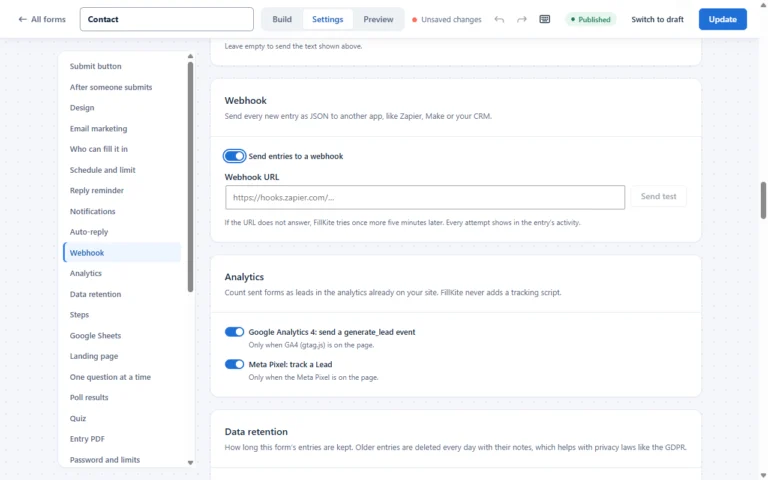
If your sales process lives in a CRM, WordPress form entries should arrive there automatically. A webhook sends each entry to another app’s address the moment it is submitted. FillKite includes webhooks in the free plugin, and the delivery log shows whether each one succeeded. Combined with the saved copy in WordPress, you have both: the CRM for sales, and a complete record on your site.
Way 5: Export regularly
Even with entries saved, keep a copy outside your site. From the FillKite inbox you can export the entries that match your current filters as CSV or Excel, export JSON for developers, print them, or download a PDF of any entry. A monthly export alongside your normal site backups means your WordPress form entries survive even if something goes badly wrong with the site.
What to do with entries from each kind of form
| Form | What an entry needs | Useful statuses |
|---|---|---|
| Contact | A reply | New → Replied |
| Quote request | A price and a follow-up | New → Replied → Won |
| Job application | A review, then a decision | New → Read → Replied |
| Feedback or survey | Reading and occasional action | New → Read |
| Newsletter sign-up | Nothing manual; sent to your email tool | None needed |
Not every one of your WordPress form entries needs the same care. Quote requests deserve the fastest replies and a Won status when they convert; survey answers can be read in a weekly batch. Filter the inbox by form to give each kind the attention it needs.
How to find a missing entry
When a customer says they sent a form and you cannot find it, work through these checks:
- Search the inbox for their email address or name, across every form and all dates.
- Check the Spam tab. A strict filter may have caught them; mark it Not spam if so.
- Check the Trash. A colleague may have deleted it by mistake.
- Check the delivery log to see whether the notification was sent, and what the mail server answered.
- Ask for the page and time. If there is still nothing, they may have used a different form, a different site, or the form failed to send on their side.
With saved WordPress form entries, these checks take a minute and nearly always give an answer. Without them, you can only search email and hope.
Bring old entries with you
Switching form plugins does not have to mean losing history. If your old plugin kept entries, export them as CSV before you remove it. FillKite can import entries from a CSV file under FillKite → Import, so your old WordPress form entries sit in the same inbox as new ones. If the old plugin never saved entries, there is nothing to bring, which is one more reason to start saving now.
Saving is half the job: managing WordPress form entries
A saved entry that nobody answers is no better than a lost one. The inbox features that turn a list into a follow-up system:
| Feature | What it does |
|---|---|
| Statuses | New, Read, Replied, Won and Spam, so everyone sees where each lead stands |
| Reply timer | Shows how long an entry has waited; amber after an hour, red after a day |
| Stars and notes | Mark the entries that matter; add private notes for your team |
| Search and filters | Find any entry by form, date, lead quality or any answer |
| Bulk actions | Mark or trash many entries at once |
| Edit answers | Correct a typo; every change is kept as a note |
| Lead quality | A High, Medium or Low badge to reply to the best leads first |
The reply timer matters most. A lead that waits a day often goes to a competitor. Our guide to lead response time explains why, and how to shorten it.
A simple daily routine
A few minutes a day keeps WordPress form entries under control:
- Open the inbox and sort by waiting time. Red first, then amber.
- Reply to each new lead, then mark it Replied so the timer stops.
- Star the entries that need follow-up later, and add a note saying what is next.
- Glance at the Spam tab for anything real.
- Mark won jobs as Won, so your reports show which forms bring in business.
Most teams find that once the routine is in place, nothing waits more than a few hours.
Learn from your entries
Saved WordPress form entries are also data. Over a few months they show which forms, pages and campaigns bring in enquiries, and which of those turn into work. FillKite saves the UTM campaign tags, referrer and landing page with every entry, without cookies, and the Won status shows which leads became customers. The forms list shows each form’s views and conversion rate for the last 30 days, so you can see which forms need work. Our guide to form conversion rate explains how to improve them.
Keep the routine light. The aim is not a perfect inbox but one where no real person waits too long for an answer. On busy days, reply to the red and amber entries first and leave tidying for later.
Give the team access, not admin rights
The people who answer enquiries often should not be able to edit forms or site settings. In FillKite, Settings → Access lets you choose, per role, who can build forms, who can see and answer entries, or both. An entries-only role sees just the inbox. That keeps WordPress form entries in one shared place without handing out full admin access.
When someone leaves the team
If enquiries only live in email, they leave with the person whose inbox they were in. Their replies, their notes and the context of each conversation go with them. Saved entries solve this. Everything a colleague did is on the entry: its status, their notes, and a record of any edited answers. The next person can pick up where they left off, and the customer never has to explain their request again.
Make it a habit that every reply is noted on the entry, even a phone call: “Called, sending proposal Friday.” It takes seconds and protects the business from depending on one person’s memory.
Which copy is the real one?
When WordPress form entries are both saved and emailed, decide which copy your team treats as the source of truth. Make it the saved entry. Replies, statuses, notes and corrections all happen there, and the email is only a heads-up. That way a colleague can see instantly that a lead was already answered, and nobody replies twice from different inboxes.
If you also forward notifications to a shared mailbox, say so in the email subject or footer, so recipients know to reply from the inbox and mark the entry, not from their own email client.
Keep entries only as long as needed
Saving everything forever creates a privacy risk. Decide how long you need WordPress form entries, then delete older ones automatically. FillKite’s Data retention setting on each form keeps entries forever or deletes them after a number of days, and spam is always removed after 30 days. Our guide to the GDPR contact form covers how to choose a period.

Keep stored entries secure
Saved WordPress form entries contain personal data, so they need the same care as any customer record:
- limit who can see entries with roles, rather than giving everyone admin access;
- keep WordPress, your theme and plugins up to date;
- use strong passwords and two-factor authentication for accounts that can see entries;
- include the database in your backups, and keep backups somewhere safe;
- delete what you no longer need with a retention period.
FillKite stores IP addresses only as a hash, and keeps entries in your own database rather than sending them to an outside service, which keeps the list of places your data lives short.
A WordPress form entries checklist
- Every form saves its entries in WordPress, not only in email.
- Entries are saved before notifications are sent.
- The team works from one inbox, with statuses and notes.
- A reply timer or reminder stops leads from waiting too long.
- Spam sits in its own folder, reviewed weekly.
- Entries are exported monthly and included in backups.
- A retention period deletes old entries automatically.
Where this goes wrong
| Mistake | What happens | Do this instead |
|---|---|---|
| Relying on email only | Failed or deleted emails lose leads | Save every entry in WordPress |
| Saving but never reviewing | Leads go cold in a list | Use statuses and a reply timer |
| Everyone with admin rights | Settings changed by accident | An entries-only role |
| Spam mixed with leads | Real entries buried | A separate Spam tab |
| Keeping entries forever | Growing privacy risk | Set a retention period |
| No export or backup | History lost with the site | Export monthly |
Frequently asked questions
Does WordPress save form entries by default?
No. WordPress itself has no form feature; it depends on the form plugin. Some plugins save entries, others only email them.
Where are WordPress form entries stored?
Plugins that save entries store them in your site’s database, usually in their own tables. FillKite stores forms and entries in its own tables in your WordPress database and sends nothing to FillKite.
How do I export WordPress form entries?
In FillKite, filter the inbox to the entries you want, then use Export for CSV or Excel, or download a PDF of an entry. For Contact Form 7, a storage add-on such as Flamingo adds export.
Will saving entries slow down my site?
No. Saving an entry is a single, small database write when the form is sent. Visitors browsing your pages are not affected, and FillKite loads nothing on pages without a form.
Can I print or share one entry?
Yes. In FillKite, open the entry and download it as a PDF, with or without team notes, or print it. Tick several entries to download them as one PDF, one entry per page.
Are spam entries saved too?
In FillKite, yes, in a separate Spam tab, without notification emails. You can review them, mark mistakes as Not spam, and they are deleted automatically after 30 days.
Can I recover entries that were never saved?
Unfortunately not, if the plugin only emailed them. Check the recipient’s inbox, spam folder and any forwarding addresses. Then start saving entries so it cannot happen again.
Keep every WordPress form entry, and answer it. FillKite saves each entry before any email is sent, in an inbox with statuses, notes, a reply timer and exports. See the lead inbox, read the entries guide, or install FillKite free from WordPress.org.
Last updated: