Form Not Sending Email? 7 Proven Fixes for WordPress
In short:
- A WordPress form not sending email is almost never a broken form. The message leaves your site from an address your domain has not approved, and Gmail or Outlook drops it.
- The fix has four parts: a real sender address on your own domain, SMTP, SPF/DKIM/DMARC records, and a notification address someone reads.
- Since February 2024, Gmail and Yahoo require bulk senders to authenticate their mail, and unauthenticated mail from small sites is filtered harder too.
- Save every entry before any email goes out, so a failed email never means a lost lead.
- Test with a real Gmail address and look for
spf=pass,dkim=passanddmarc=passin the headers.
A form not sending email is one of the most common WordPress problems, and one of the most expensive. The form looks fine, the visitor sees “Thank you”, and the enquiry vanishes. Nobody notices until a customer calls to ask why they never heard back.
This guide explains why a WordPress form not sending email happens, how to fix each cause in the right order, and how to set things up so you hear about a failure long before a customer does. Every step works with any form plugin. Where FillKite does something for you, we say so.
Why a form not sending email is so common
Out of the box, WordPress sends mail with PHP’s mail() function, from an address like wordpress@yourdomain.com. That mailbox usually does not exist, nobody reads it, and the web server sending the message shares its reputation with every other site on the same machine.
Mailbox providers have spent years tightening their rules. Google’s sender guidelines now ask every sender to authenticate their mail, and bulk senders must have SPF, DKIM and DMARC in place. A small site’s contact form is not a bulk sender, but its unauthenticated mail is exactly what those filters are tuned to catch. So a form not sending email is usually a form whose email was sent and then refused.
That distinction matters. If you only look at the form, everything seems to work. The problem sits between your site and the inbox, and you have to fix it there.
The 7 causes of a form not sending email
Most cases come down to one of these seven causes. The table shows how to spot each one.
| Cause | What you see | How to confirm it |
|---|---|---|
| From address not on your domain | Mail lands in spam or never arrives | Look at the From line of a notification that did arrive |
| Visitor’s address used as the sender | Gmail visitors’ enquiries never arrive | Check the form’s From setting for a field tag |
| No SMTP | Delivery is random, some days fine | No mail server login anywhere in WordPress |
| Missing SPF, DKIM or DMARC | Spam folder, or “message rejected” bounces | Run a DNS check on your domain |
Host blocks mail() |
Nothing arrives from any plugin, ever | Password reset emails fail too |
| Wrong recipient | Mail goes out, nobody reads it | The form’s notification settings |
| Mail server refuses the sender | SMTP test fails with “not owned by user” | The error text in the SMTP test |
Work through them in order. Each fix removes a cause, and the later steps depend on the earlier ones.
Fix 1: send from an address on your own domain
The single biggest cause of a form not sending email is the From address. Use a real mailbox on your own domain, such as hello@yourdomain.com. It should exist, and someone should be able to read replies to it.
Never put the visitor’s own address in From. When a Gmail user fills in your form and your site sends a message “from” their Gmail address, the receiving server checks Gmail’s records, sees your server is not allowed to send for gmail.com, and rejects it. Put the visitor’s address in Reply-To instead. Pressing Reply still answers them, and the message passes every check.
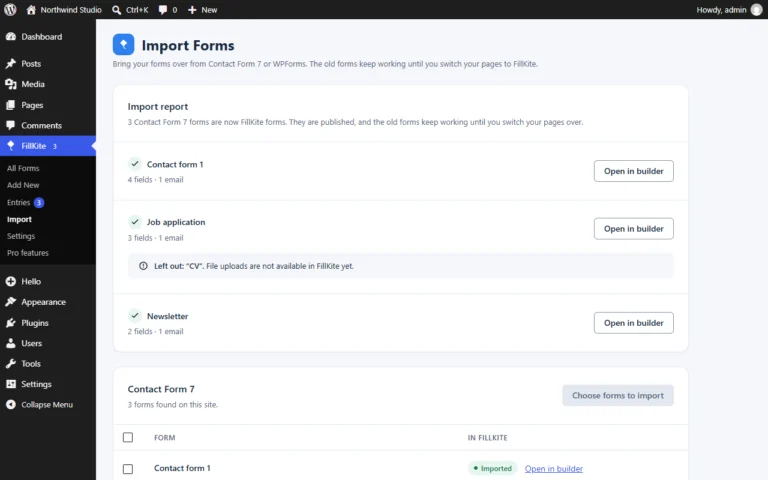
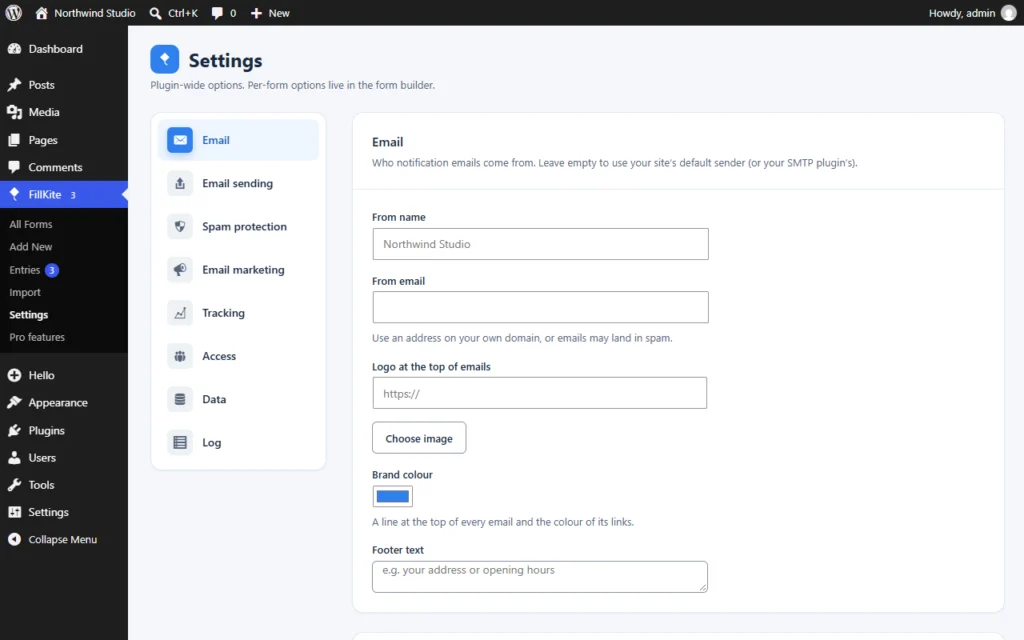
In FillKite this is one screen. FillKite → Settings → Email holds the From name and From email for every form email. The same tab adds an optional logo, brand colour and footer, so your notifications and auto-replies look like they came from you.
Fix 2: send through SMTP
SMTP means your site logs in to a real mail server and hands the message over, just as a mail app on your phone does. That server might be your host’s mail service, Google Workspace, Microsoft 365, or a sending service. Your email provider gives you four things: the server name, the port, the encryption type and a login.
Without SMTP, a form not sending email can come and go. Some days the shared web server’s reputation is fine, other days it is not, and nothing on your side changed. With SMTP, your mail carries the reputation of a real mail server that is set up to send for your domain.
Most form plugins leave this to a separate SMTP plugin. FillKite has it built in under Settings → Email sending. Fill in the server, port, encryption and login, then send a test. The password is stored encrypted, and the test shows the server’s own answer, so a wrong password or a blocked port tells you exactly what went wrong. Once SMTP is on, every email your site sends goes through it, not only form emails, so password resets and WooCommerce receipts benefit too.
Watch out: many mail servers only let you send from the address you logged in with. If the SMTP login is hello@yourdomain.com and the From email is info@yourdomain.com, the server may refuse every message with an error such as “sender address not owned by user”. Make the From email and the SMTP login the same address.
Fix 3: add SPF, DKIM and DMARC
These three DNS records prove to the world that your mail really comes from you. Without them, a form not sending email is only a matter of time, even with SMTP.
| Record | What it does | Where it comes from |
|---|---|---|
| SPF | Lists the servers allowed to send mail for your domain | Your email provider gives you one TXT record |
| DKIM | Signs each message so it cannot be changed on the way | Your email provider gives you a key to publish |
| DMARC | Tells receivers what to do when SPF or DKIM fails | You write it; start with p=none to watch reports first |
Add them where your domain’s DNS is managed. That is often your registrar or your host, not WordPress. Changes can take a few hours to spread.
To see what is missing, FillKite has a Check my sender domain button on the Email tab. It looks up SPF, DKIM and DMARC for your From address and tells you in plain English what to add. You do not need to read raw DNS records to use it.
Fix 4: check who the notification goes to
Sometimes a form not sending email is really a form sending email to the wrong place. An old address from a previous agency, a typo, or a shared inbox nobody checks any more.
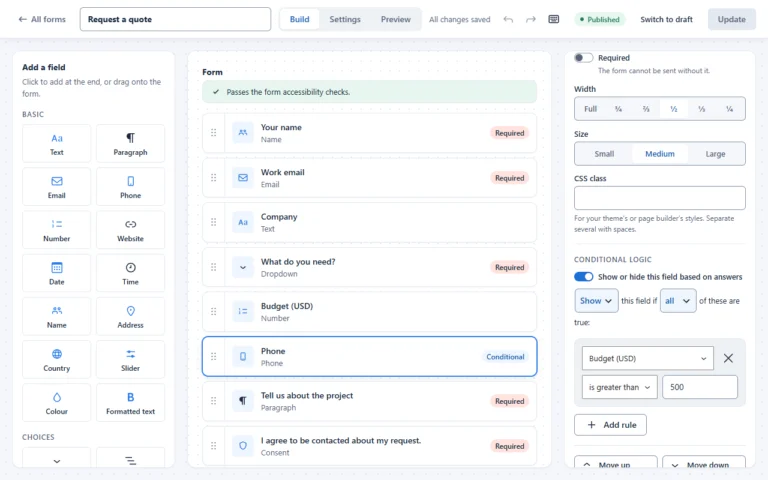
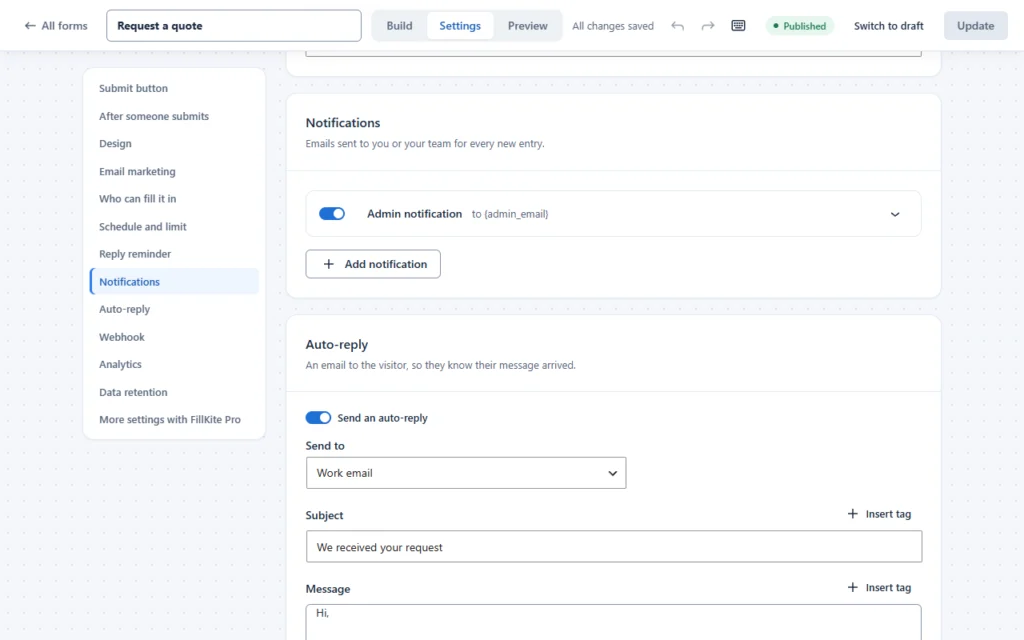
Open the form and look at its notifications. By default FillKite sends one to the site’s admin email, with the subject “New entry: form name”. You can add more notifications, up to 10 per form, with CC and BCC. You can also give a notification its own rules, so it only goes out when the answers match. For example, send to sales only when Department is Sales, and to support otherwise.
Fix 5: check what your host allows
Some hosts switch off PHP’s mail() function, cap how many messages a site may send per hour, or block the outgoing SMTP ports. If a form not sending email comes with password reset emails failing as well, the host is the first suspect.
Ask your host three questions. Is mail() allowed? Which SMTP ports are open (465 and 587 are the usual ones)? Is there an hourly sending limit? SMTP through your email provider usually solves all three at once, which is why it is Fix 2.
Fix 6: send a real test and read the headers
Do not trust the “Thank you” message. Submit the form yourself, from a phone, using an address on a different provider from your site. A personal Gmail address is the best test, because Gmail is the strictest common filter.
- Send one entry through the form.
- Find the notification in Gmail. Check the spam folder too.
- Open the message menu and choose Show original.
- Look for
SPF: PASS,DKIM: PASSandDMARC: PASSat the top.
Three passes mean your setup is right. A fail tells you which record to fix. If nothing arrives at all, the next step is the log.
Fix 7: keep a log, and never lose the entry
Even a perfect setup fails sometimes. A mail server is down for ten minutes, someone changes a password, a DNS record is edited by mistake. What matters is what happens then, because a form not sending email for one afternoon can cost a week of leads if nobody notices.
This is the part FillKite was built around:
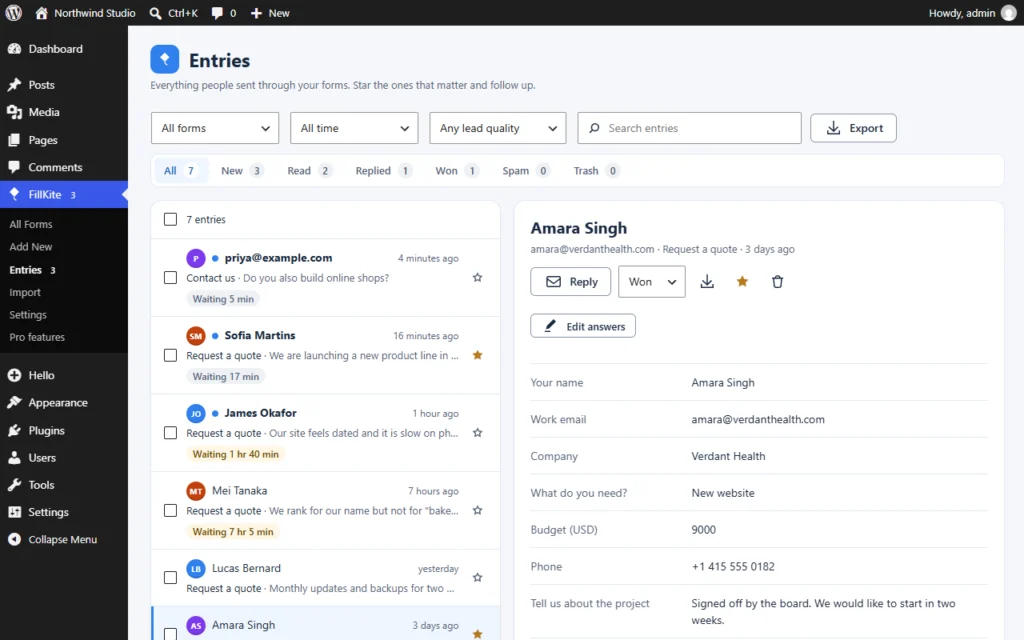
- The entry is saved first. Every entry is stored in your WordPress database before any email is sent, so the lead is safe even if every email fails.
- Automatic retries. If a notification fails, FillKite tries again after 5 minutes, 30 minutes and 2 hours.
- “Email not sent” on the entry. An entry whose email failed shows that label with a Send again button, and the inbox and the WordPress dashboard warn you with a link to those entries.
- A daily test email. Turn it on and FillKite sends one short test a day, the same way form notifications go out. If it fails, WordPress warns you before a real lead is missed.
- An email log. Settings → Log shows every email FillKite sent, when, and what the mail server answered.
With every entry in an inbox inside WordPress, email becomes a notification, not the only copy of the lead. A form not sending email stops being an emergency and becomes a warning you fix at your own pace.
How to diagnose a form not sending email in three minutes
If you are in a hurry, this short routine narrows a form not sending email down to one cause before you change anything.
- Send a password reset to yourself. Use the “Lost your password?” link on the login screen. If that email does not arrive either, the problem is site-wide: go straight to SMTP and your host.
- Look at the From line. If the reset email arrived, open it and check who it came from. An address like
wordpress@or a Gmail address in From explains a lot. - Check the form’s recipient. Open the form’s notification settings and read the To address letter by letter.
- Look at the log. If your form plugin keeps an email log, the answer from the mail server is usually the whole diagnosis: “authentication failed”, “sender not owned by user”, or “message rejected”.
Four checks, no code, and you know which fix to start with. Most sites find the answer at step 2.
One more tip: when a form not sending email only affects some visitors, compare their addresses. If every missing enquiry came from a Gmail or Outlook user, your sender setup is the cause, because those providers filter hardest. If they came from one company’s domain, that company’s own spam filter is probably holding them, and a quick call to their IT team solves it.
Where this goes wrong
These are the mistakes we see most when people fix a form not sending email. Each one looks like a fix and is not.
| Mistake | Why it fails | Do this instead |
|---|---|---|
| Installing a second SMTP plugin | Two plugins fight over the same mail function | Use one: the form plugin’s SMTP or one SMTP plugin |
| Using a free Gmail address as From | Your server is not allowed to send for gmail.com | Use a mailbox on your own domain |
| Adding a second SPF record | Two SPF records make both invalid | Merge them into one record |
Starting DMARC at p=reject |
Any mistake blocks all your mail at once | Start at p=none, then tighten |
| Testing only with your own domain | Your own server trusts itself | Test with Gmail and Outlook |
| Fixing email but not storing entries | The next outage loses leads again | Save every entry before sending |
A one-minute checklist
- From email is a real mailbox on your own domain.
- The visitor’s address is in Reply-To, not From.
- SMTP is on, the From email matches the SMTP login, and the test email arrives.
- SPF, DKIM and DMARC exist, and a received email shows all three as pass.
- Notifications go to an address someone reads every day.
- Entries are saved in WordPress, so a form not sending email never loses a lead.
If your forms also need routing or follow-up fields, our guide to WordPress conditional logic shows how to send each enquiry to the right person. Moving from another plugin? See how to import Contact Form 7 forms without losing one.
Frequently asked questions
Why is my WordPress form not sending email to Gmail?
Gmail is the strictest common filter. A form not sending email to Gmail usually sends from an address without SPF, DKIM and DMARC, or from the visitor’s own address. Send from a real mailbox on your domain, through SMTP, with those three records in place.
Do I need an SMTP plugin to fix a form not sending email?
Not with FillKite. SMTP is built in under Settings → Email sending, and it sends every email from your site, not only form emails. With many other form plugins you need a separate SMTP plugin.
What happens to a lead if the email fails?
In FillKite, nothing is lost. The entry is saved before any email is sent, a failed email is retried three times, and the entry is marked “Email not sent” with a Send again button.
Why does my form say it was sent but no email arrives?
Your site handed the message over, but the receiving server refused or filtered it. Check the spam folder first, then your domain’s SPF, DKIM and DMARC. An email log shows the answer your mail server gave for each message.
How long does it take to fix a form not sending email?
Setting the sender and SMTP takes about ten minutes. DNS records for SPF, DKIM and DMARC can take a few hours to take effect after you add them, so test again the next day.
Is a form not sending email a security problem?
Not by itself, but the fix improves security too. SPF, DKIM and DMARC make it much harder for anyone else to send mail pretending to be your domain.
Stop losing leads to a form not sending email. FillKite saves every entry, retries failed emails and has SMTP built in, free. Read the guides to email delivery and health and notifications and auto-reply, see every feature, or join the waitlist to hear the day FillKite is out.