Import Contact Form 7 Forms in 5 Simple Steps (Free)
In short:
- You can import Contact Form 7 forms into a new form plugin without losing a form, a notification or a lead, if you follow the right order.
- The order is: back up, import, read the report, check each form, switch your pages, test, then remove the old plugin.
- FillKite’s importer finds your Contact Form 7 and WPForms forms even when those plugins are switched off.
- Fields, choices, required settings, notifications, auto-replies and thank-you messages come over. File upload, payment and quiz fields do not, and the report says why.
- Your old forms keep working until you switch each page, and every page FillKite changes keeps a revision you can restore.
Contact Form 7 has powered WordPress contact forms for well over a decade, and it is still on millions of sites. But many site owners reach a point where they want entries saved in WordPress, a place to follow up leads, and conditional logic without add-ons. That is when the question comes up: how do I import Contact Form 7 forms into something new without breaking the site?
This guide gives you a safe, five-step way to import Contact Form 7 forms, what comes over and what does not, how to switch your pages, and the checks to run before you delete the old plugin. The same steps work for WPForms.
Should you switch at all? An honest answer
Not every site needs to import Contact Form 7 forms into something else. Contact Form 7 still wins in a few situations, and it is worth saying so.
- A developer maintains the site. If someone comfortable with markup edits every form anyway, the tag syntax is fast and flexible.
- You have one simple form that sends a handful of messages a month, email delivery is reliable, and nobody needs a history of enquiries.
- You rely on a Contact Form 7 add-on that has no equivalent elsewhere. Check that before you switch.
The case for switching is strongest when forms bring in paying work. If a lost enquiry costs you a customer, you want every entry saved, a clear view of who has been answered, and a warning when an email fails. That is what you get when you import Contact Form 7 forms into FillKite, and it is the reason most people make the move.
If you are unsure, there is no risk in trying. Import Contact Form 7 forms, look at them in the builder, and switch one low-traffic page. Your other pages keep their old forms until you decide.
Why people import Contact Form 7 forms into another plugin
Contact Form 7 is free, reliable and flexible, but it was built for people comfortable with markup. Forms are written in a tag syntax, and several things most businesses need are not part of it. These are the usual reasons people decide to import Contact Form 7 forms elsewhere:
- Entries are not saved. Contact Form 7 emails each submission and keeps no copy. If the email fails, the lead is gone.
- No lead follow-up. There is nowhere to see who has been answered and who is still waiting.
- Logic needs add-ons. Showing or hiding fields depends on extra plugins.
- Editing forms means editing tags. Anyone who is not technical has to ask a developer to add a field.
None of these make Contact Form 7 a bad plugin. They make it a developer’s tool. If the people running the site are not developers, a visual builder with an inbox is usually a better fit.
What comes over when you import Contact Form 7 forms
Before you start, it helps to know exactly what the importer moves, so nothing surprises you.
| Part of the form | Comes over? | Notes |
|---|---|---|
| Fields and their order | Yes | Text, email, phone, website, number, date, paragraph, dropdown, checkbox, radio, acceptance and hidden fields |
| Choices | Yes | Dropdown, checkbox and radio options |
| Required settings | Yes | Required fields stay required |
| Notification email | Yes | Recipient, subject and message |
| Auto-reply (Mail 2) | Yes | Becomes the form’s auto-reply |
| Thank-you message | Yes | Shown after sending |
| File upload fields | No | File uploads are part of FillKite Pro; add them by hand |
| Quiz and payment fields | No | Listed in the report with the reason |
| Old entries | Nothing to move | Contact Form 7 never stored them |
In practice, most business forms are contact, quote and callback forms made of text, email, phone and message fields, and those import Contact Form 7 forms cleanly with nothing to fix afterwards. The forms that need a second look are the ones with uploads or quizzes, and the report points straight at them.
How Contact Form 7 tags become FillKite fields
Contact Form 7 describes each field with a tag such as [email* your-email]. When you import Contact Form 7 forms, each tag becomes a normal field in the builder, with a label you can edit and settings you can change without touching markup.
| Contact Form 7 tag | FillKite field |
|---|---|
text |
Text |
email |
|
tel |
Phone |
url |
Website |
number, range |
Number |
date |
Date |
textarea |
Paragraph |
select, checkbox, radio |
Dropdown, Checkboxes, Radio buttons |
acceptance |
Consent |
hidden |
Hidden |
A star in the tag, as in email*, means required, and the field stays required after you import Contact Form 7 forms. Each field keeps its Contact Form 7 name as its ID, so anything that refers to the old name keeps making sense.
Mail tags become merge tags
Contact Form 7 emails use mail tags such as [your-name] to drop answers into the message. The importer turns each one into a FillKite merge tag, such as {field:your-name}, in the subject and body of the notification and the auto-reply. Your emails read the same as before.
A few special Contact Form 7 tags have no FillKite equivalent. When that happens the tag is left as plain text, and the report tells you which one, so you can replace it with a FillKite merge tag like {form_title} or {page_url}. The auto-reply comes over when its recipient is a single email field, which is how almost every Contact Form 7 form sets up Mail (2).
Before you import Contact Form 7 forms: four checks
- Take a full backup of files and database. You will not need it if you follow the steps, but it costs nothing.
- List where each form is used: pages, posts, popups, footers and sidebar widgets. Search your content for
[contact-form-7to find them. - Write down each form’s recipients and any connections, such as a CRM or a mailing list, that rely on the old form.
- Keep Contact Form 7 active until the very last step, so your site never has a broken form.
Step 1: Import Contact Form 7 forms in one go
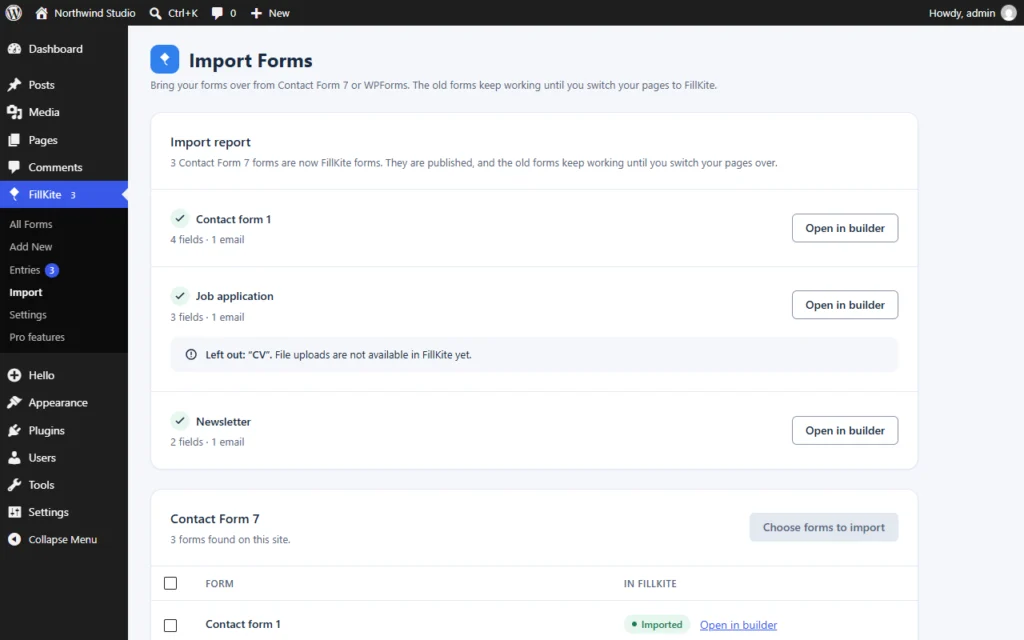
Install FillKite and go to FillKite → Import. FillKite finds your Contact Form 7 and WPForms forms, even when those plugins are switched off, and lists them with a checkbox each.
Tick the forms you want under Choose forms to import and start the import. You can import Contact Form 7 forms all at once or a few at a time. Imported forms are published straight away, but nothing on your site changes yet: the old forms keep working on your pages.
Try it on a staging copy of your site first if you have one. You can import Contact Form 7 forms there, switch every page, test, and then repeat the same steps on the live site with no surprises. On a small site, doing it live is fine, because nothing changes until you switch a page.
Step 2: Read the import report
When you import Contact Form 7 forms, FillKite writes a short report. Each form shows its number of fields and emails, and anything that was left out, with the reason.
Read it once, carefully. If a form had a file upload field, the report says so, and you know that form needs attention before you switch its page. Everything else is ready to check.
Step 3: Check each form in the builder
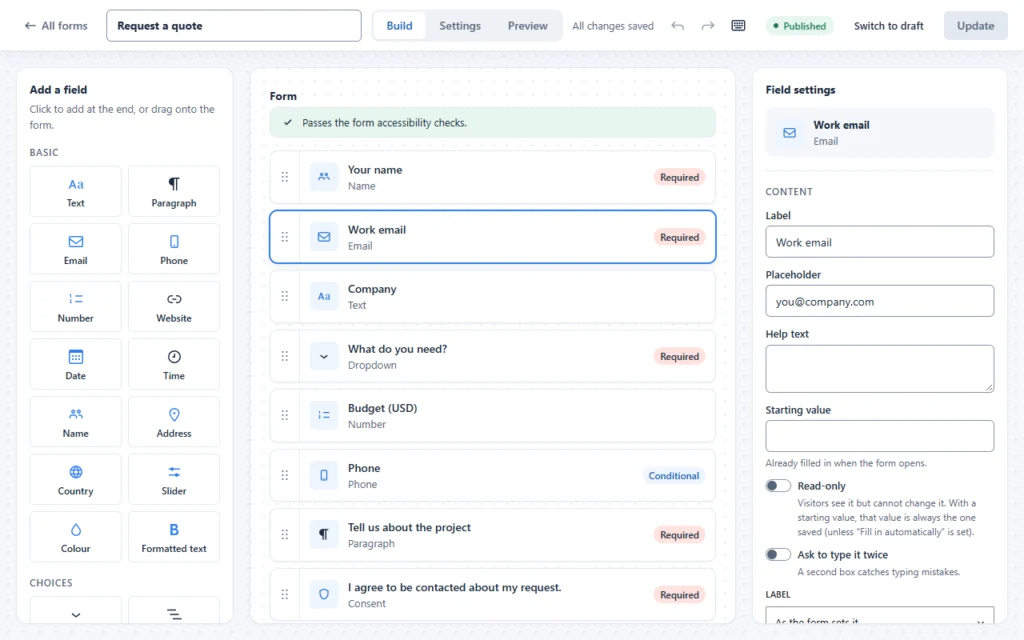
Press Open in builder for each form and check it against your notes:
- Field labels and order are right, and required fields are marked.
- The notification goes to the right people, from an address on your own domain.
- The auto-reply and thank-you message read well.
- Any field the report left out is added again, if you need it.
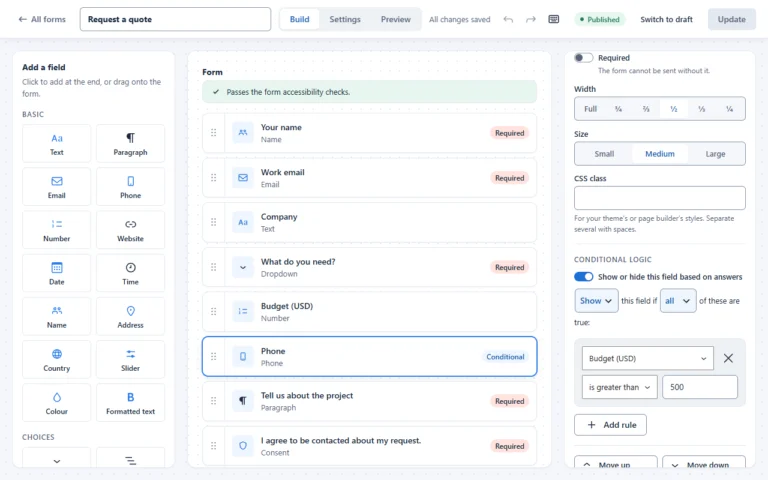
This is also the moment to add what you could not have before: WordPress conditional logic to shorten long forms, a reply reminder so no lead waits too long, or lead tracking to see which campaign each enquiry came from.
Take your time with this step. A form is often the only way a new customer can reach you, so a few extra minutes here are well spent. Read each label as a visitor would, and ask whether every question is still needed. Many teams import Contact Form 7 forms and then remove two or three fields nobody has used in years, which makes the form shorter and easier to finish. Shorter forms usually bring in more enquiries, not fewer.
Step 4: Switch your pages
Your new forms exist, but your pages still show the old ones. There are two ways to switch them.
- By hand: replace each old shortcode with FillKite’s
[fillkite id="…"]shortcode, the FillKite block, or the FillKite Elementor widget. - Automatically: let FillKite replace Contact Form 7 and WPForms shortcodes and blocks with the new forms. You see every change before it happens, and each page keeps a revision you can go back to.
Pages built with Elementor are listed but not rewritten automatically, because Elementor stores its layouts differently. Open them and swap the widget or shortcode yourself; it takes about a minute per page.
Step 5: Test, then remove the old plugin
- Send one real entry through every form, from a phone and from a desktop.
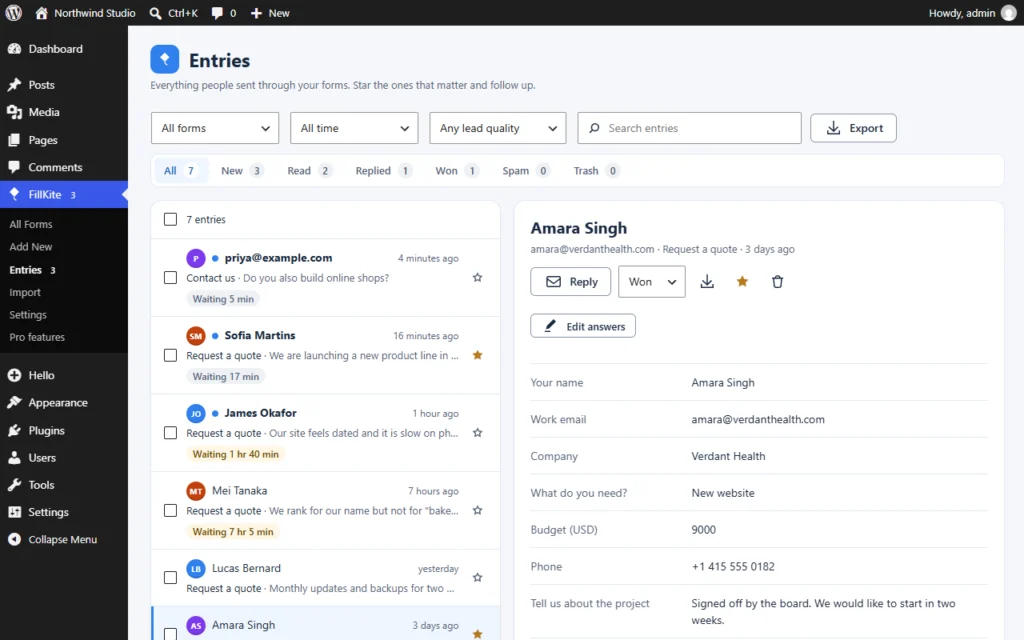
- Check that each entry appears in FillKite → Entries and each notification email arrives.
- Search your content again for
[contact-form-7and[wpforms. Nothing should be left. - Switch Contact Form 7 off and wait a day or two. If nothing is missing, delete it.
If a test email does not arrive, the form is rarely the cause. Our guide to fixing a form not sending email covers sender addresses, SMTP and DNS records step by step.
The same steps for WPForms
Everything above works the same way for WPForms. The importer finds WPForms forms even when WPForms is switched off, brings over the same parts, and the page switcher handles WPForms shortcodes and blocks too.
One difference: WPForms Lite does not save entries either, so there is nothing to move. On a paid WPForms plan, export your old entries to CSV before you remove the plugin, then bring them in under FillKite → Import → Entries from a CSV file, so your history stays in one place.
Where a switch goes wrong
| Mistake | What happens | Do this instead |
|---|---|---|
| Deleting the old plugin first | Every page shows a bare shortcode | Remove it last, after testing |
| Forgetting forms in widgets or popups | A form breaks weeks later | Search all content for old shortcodes |
| Skipping the report | A file field quietly disappears | Read it before switching pages |
| Not testing email delivery | Leads arrive in the inbox but nobody is told | Send a real test to Gmail |
| Changing everything in one evening | Hard to tell what broke | Switch a few pages, test, then continue |
| Forgetting third-party hooks | A CRM or mailing list stops getting data | Reconnect it with a webhook or integration |
How long it takes to import Contact Form 7 forms
For a typical small business site with three to five forms, plan for about an hour:
- Backup and listing where forms are used: 10 minutes.
- Import and reading the report: 5 minutes.
- Checking each form in the builder: 5 minutes per form.
- Switching pages and testing: 20 minutes.
Sites with dozens of forms, or forms built into page builder templates, take longer, mostly because of the testing. The import itself takes seconds.
Your first week after the switch
The switch is done, but a little attention in the first week makes sure nothing slipped through.
- Day 1: watch the inbox. Every real enquiry should appear in FillKite → Entries within seconds of being sent.
- Day 2: check the email log. Every notification should show as sent, with no “Email not sent” labels.
- Day 3: look at the Spam tab. The honeypot and time check catch most bots; if a real person landed there, press Not spam.
- Day 5: turn on a reply reminder for your busiest form, so a lead that waits too long sends you a nudge.
- Day 7: delete Contact Form 7 if you have not already, and remove any add-ons that only existed to extend it.
After a week, the forms are part of the site again, and you can forget that you ever had to import Contact Form 7 forms at all.
What you gain after you import Contact Form 7 forms
- Every entry saved in your own WordPress database, before any email is sent.
- A lead inbox with statuses, stars, notes and a reply timer that turns amber after an hour and red after a day.
- Failed emails retried after 5 minutes, 30 minutes and 2 hours, with a warning if they still fail.
- Spam stopped without puzzles: a hidden honeypot and time check on every form, plus an optional local spam score.
- Conditional logic written as sentences, free.
- About 11 KB per form, and nothing loaded on pages without one.
Frequently asked questions
Do I need Contact Form 7 active to import its forms?
No. FillKite reads your Contact Form 7 forms even when that plugin is switched off.
Will my old entries come over when I import Contact Form 7 forms?
There are none to bring. Contact Form 7 never saves entries; it only emails them. From the day you switch, FillKite keeps every entry.
Will my forms stop working during the switch?
No. The old forms keep working on your pages until you switch each page to its new FillKite form.
Can I undo a page switch?
Yes. FillKite saves a revision of every page it changes, so you can restore the old version from the page’s revisions.
Is it free to import Contact Form 7 forms into FillKite?
Yes. The importer is part of the free plugin, with no limit on the number of forms.
Will my site look different after the switch?
Your forms will look cleaner, but they follow your theme. FillKite matches your theme’s fonts and button colours by default, and you can adjust the design per form, or in the Elementor widget’s Style tab.
What happens to spam protection after the switch?
Every FillKite form has a hidden honeypot and a time check built in, so most bots are stopped without a puzzle. You can add a local spam score, Akismet, or a captcha such as Cloudflare Turnstile under Settings → Spam protection if you need more.
Can I import Contact Form 7 forms more than once?
Yes. The Import screen marks forms you have already brought over, so you can import new ones later without duplicating the old ones.
Import Contact Form 7 forms in minutes and keep every lead from day one. Read the import guide, compare FillKite with Contact Form 7 and WPForms, or join the waitlist to hear the day FillKite is out.