WordPress Survey Form: 7 Free Field Types to Use
In short:
- A WordPress survey form collects structured opinions from many people, so you can compare answers and spot patterns, not just read individual messages.
- The right field type makes a survey faster to answer and easier to analyse. Seven free field types cover almost every survey question.
- Those seven: multiple choice, rating, Net Promoter Score, Likert scale, checkbox grid, ranking and slider.
- Keep surveys short, ask one thing per question, and use conditional logic to skip questions that do not apply.
- FillKite includes all seven in the free plugin, with exports to CSV and Excel for analysis.
A WordPress survey form lets you ask many people the same questions and compare their answers. Customer satisfaction, event feedback, product research, staff pulse checks: all of them work better when the answers are structured and easy to count.
This guide explains the seven free field types that cover almost every survey question, when to use each, how to write questions that produce useful answers, and how to build, share and analyse a WordPress survey form. The examples use FillKite, which includes all seven field types for free.
Why run a WordPress survey form at all?
Most businesses guess what customers think, based on the few who complain or praise loudly. A WordPress survey form replaces guesswork with a picture of the whole group. It shows whether a problem affects a handful of people or most of them, which improvements customers would value most, and whether changes you make actually help. Because the form lives on your own site, the answers stay in your own database, and you control who sees them.
Surveys also show customers that you care about their view. People who are asked for their opinion, and then see it acted on, tend to feel more connected to a business than people who are never asked.
Survey or feedback form?
A feedback form usually asks one or two open questions after a single experience. A survey asks the same structured questions to many people to measure something across a group: how satisfied customers are overall, which features matter most, how an event went for the audience. The difference matters because surveys depend on consistent, comparable answers, which is exactly what the right field types provide. For short, single-experience feedback, see our guide to the WordPress feedback form.
7 free field types for a WordPress survey form
| Field type | Best for | Example question |
|---|---|---|
| Multiple choice (radio or checkboxes) | Picking one or several options | Which of our services have you used? |
| Rating | Quick satisfaction score | How would you rate the event overall? |
| Net Promoter Score | Loyalty on a 0–10 scale | How likely are you to recommend us? |
| Likert scale | Agreement with several statements | The staff were helpful: Strongly disagree … Strongly agree |
| Checkbox grid | Several items against the same options | Which features do you use daily, weekly, never? |
| Ranking | Priorities | Put these improvements in order of importance |
| Slider | A value on a range | How many hours a week do you spend on this? |
1. Multiple choice
Radio buttons when people pick one answer, checkboxes when they can pick several. Always include “Other” or “None of these” where a visitor’s answer might not be listed, or you will force wrong answers.
2. Rating
Stars are familiar and quick. Use them for a single overall score, such as satisfaction with an event or a product.
3. Net Promoter Score
The standard 0–10 “How likely are you to recommend us?” question. FillKite’s Net Promoter Score field lets you change the words at each end of the scale.
4. Likert scale
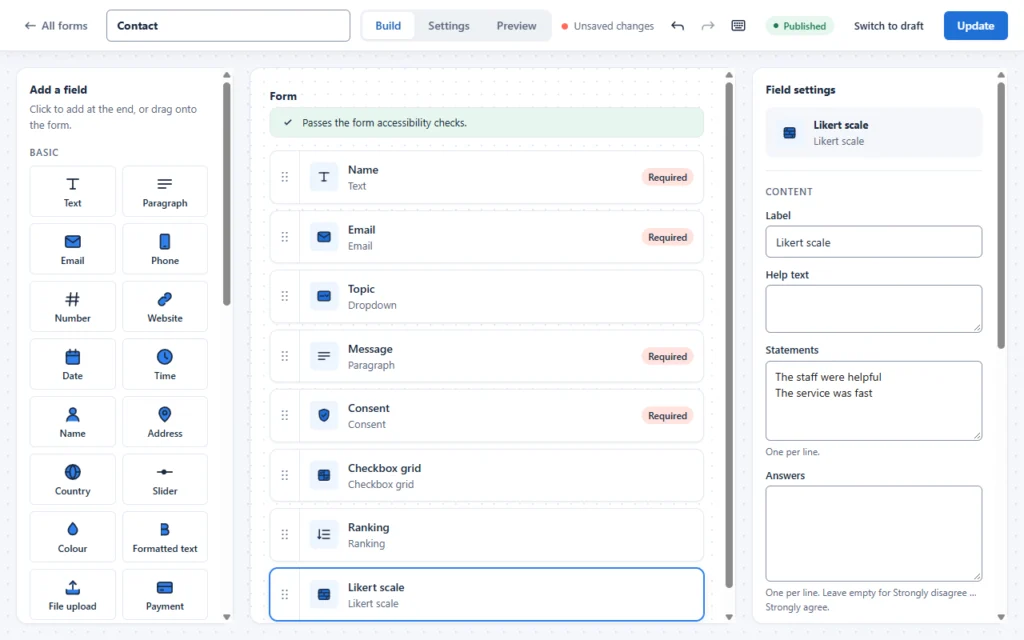
A set of statements, each answered on the same agreement scale, such as Strongly disagree to Strongly agree. In FillKite you list the statements one per line and, if you want, your own answer labels. It turns several questions into one compact block.
5. Checkbox grid
Rows of items and columns of options, where people can tick more than one per row. Useful for questions such as which products someone uses in which situations.
6. Ranking
People put a list in order. It forces real priorities, where a rating scale would let everything be “very important”.
7. Slider
A value on a range, such as hours, budget or percentage. Good when the exact number matters less than roughly where it sits.
How to choose the right field for each WordPress survey form question
A simple way to pick field types for a WordPress survey form is to ask what you will do with the answer. If you want to count how many people chose each option, use multiple choice. If you want an average, use a rating or a slider. If you want to track loyalty over time, use Net Promoter Score. If you want to compare how people feel about several things on the same scale, use a Likert scale or a checkbox grid. If you want to know what matters most, use ranking. And if you want to understand why, add one open question.
Mixing a few types keeps the survey interesting, but consistency within a topic helps analysis: if you rate one part of the service with stars, rate the others the same way.
Write questions that produce useful answers
- One thing per question. “How satisfied were you with the price and quality?” mixes two; split it.
- Neutral wording. “How would you rate…” not “How much did you love…”.
- Balanced scales. As many positive as negative options, with a clear middle.
- Specific time frames. “In the last month” beats “usually”.
- Plain words. Avoid jargon and internal names for products or teams.
- Test the wording on two or three people first. Pew Research’s guide to writing survey questions is an excellent free reference.
WordPress survey form examples
Customer satisfaction survey
- Overall, how satisfied are you with our service? (Rating)
- How likely are you to recommend us? (Net Promoter Score)
- Rate these statements: Easy to contact, Quick to reply, Good value (Likert scale)
- What is one thing we could do better? (Paragraph)
Event survey
- How would you rate the event overall? (Rating)
- Rate each session: useful, okay, not useful (Checkbox grid or Likert)
- Which topics should we cover next time? (Checkboxes with Other)
- Anything else to tell us? (Paragraph)
Product research survey
- Which of these tools do you use today? (Checkboxes)
- Put these features in order of importance (Ranking)
- How many hours a week do you spend on this task? (Slider)
- What is the hardest part of it today? (Paragraph)
Team pulse survey
- Rate these statements: I know what is expected of me, I have the tools I need, I would recommend working here (Likert scale)
- What should we start, stop or continue? (Paragraph)
Each WordPress survey form above takes two to four minutes and mixes quick structured questions with one open question for the “why”.
Keep it short
Every extra question lowers the number of people who finish your WordPress survey form. Aim for five to ten questions on a WordPress survey form, which most people can answer in two or three minutes, and say so at the top: “Eight questions, about three minutes.” If you need more, split the survey into steps with a progress indicator, or run two shorter surveys at different times.
Conditional logic keeps surveys short for each person: ask “What could we improve?” only to people who gave a low rating, or skip product questions for people who have not used that product. See our guide to WordPress conditional logic.
Order your questions carefully
The order of questions changes the answers. Put easy, general questions first, such as an overall rating, so people start with a single tap. Ask about specific parts of the experience next, then the open “why” question, and any personal details last. Ask about an overall score before detailed ones where you can; detailed questions first can colour the overall answer. Keep sensitive questions near the end, when people have already invested a little time and trust you more.
Try it on a few people first
Before you send a WordPress survey form to hundreds of people, send it to three or four. Watch where they hesitate, ask which questions were confusing, and check that the exported answers are easy to analyse. Fix wording, drop a question or two, and only then send it widely. A ten-minute pilot saves you from a survey whose results you cannot use.
How to build a WordPress survey form in FillKite
- Go to FillKite → Add New and start from the Feedback template or a blank form.
- Add questions with the field types above, starting with the easiest.
- Add conditional logic to skip questions that do not apply.
- Decide whether to ask for a name and email; for honest answers, make them optional.
- Set a thank-you message, and turn off instant notifications if you plan to review answers weekly.
- Publish and share the link by email, on a page, or in a popup from a button.
For a more conversational feel, FillKite Pro can show one question at a time, which suits friendly customer surveys and quizzes.
Getting enough responses
A WordPress survey form is only useful when enough people answer. To raise response rates, send the link at a sensible moment, such as after a purchase or at the end of an event; explain in one line why you are asking and how long it takes; send one reminder, not several; and keep the first question a single tap. For customer surveys, emailing a personal link from a real person often works better than a banner on the website.
When to send it
Timing affects both how many people answer and what they say. Customer surveys work best shortly after a meaningful moment, such as a delivery, a project finishing or a support case closing, while the experience is fresh. Avoid busy periods for your audience, such as the end of the financial year for business customers. For regular surveys, pick a fixed rhythm, such as every six months, so results stay comparable and people know what to expect.
Incentives
A small thank-you, such as a discount code or entry into a prize draw, can raise responses. Offer it to everyone who finishes, whatever their answers, and keep it modest so people do not rush through just to claim it. For surveys of your own customers, a promise to share what you learned is often reward enough.
Anonymity and privacy
People answer more honestly when they trust you. Say whether the survey is anonymous, collect only what you need, and explain how you will use the results. If you ask for contact details for follow-up, make them optional. FillKite stores IP addresses only as a hash and lets you delete old entries automatically; our guide to the GDPR contact form covers retention and consent.
Accessible survey fields
Scales, grids and rankings must work with a keyboard and screen readers, not just with a mouse. Each option needs a name that makes sense when read aloud, and grids need their row and column labels announced. FillKite’s survey fields are built for this, and the builder checks each form for common accessibility problems. See our guide to accessible forms.
Analyse the answers
Collecting answers is the easy part. To learn from them:
- Export the entries from the inbox as CSV or Excel, filtered to the survey form and date range.
- Count and average the structured answers: average rating, NPS, the share who agreed with each statement.
- Read every open answer. Group them into themes; the numbers tell you what, the comments tell you why.
- Compare over time. Run the same WordPress survey form every few months with the same questions, and watch the trend.
FillKite Pro can also send each entry to Google Sheets as a row, which makes ongoing analysis easier. See our guide to sending a form to Google Sheets.
Keep bots out of your results
Public survey links attract bots, and bot answers quietly distort averages. Keep spam protection on for every WordPress survey form: FillKite’s honeypot and time check stop most automated submissions, and caught entries go to a separate Spam tab so they never reach your exports. If a survey is only for customers, share it by email rather than posting it publicly, or limit it to logged-in users with the form’s access settings.
Share the results
The best way to get answers next time is to show that this time mattered. After each WordPress survey form, share a short summary with the people who answered: the headline numbers, two or three things you heard, and what you will change. Inside your team, turn the results into one clear priority. Surveys that lead to visible action build a group of people who keep answering.
A WordPress survey form checklist
- Five to ten questions, with the time it takes stated at the top.
- The right field type for each question.
- One thing per question, in neutral words, with balanced scales.
- Conditional logic to skip what does not apply.
- Contact details optional, and anonymity explained.
- Answers exported and analysed, open comments read in full.
- Results shared, and the same core questions reused next time.
Running the same survey again
The real value of a WordPress survey form often appears the second and third time you run it. Keep the core questions exactly the same, run it at the same point in the year or the customer journey, and compare. A satisfaction score that rises after you fix something is the clearest proof that the change worked. Duplicate the WordPress survey form in FillKite for each round, so each set of answers stays separate and easy to export.
Where a WordPress survey form goes wrong
| Mistake | Effect | Do this instead |
|---|---|---|
| Thirty questions | Few finish, rushed answers | Five to ten questions |
| Double questions | Answers you cannot interpret | One thing per question |
| No “Other” option | Forced, wrong answers | Add “Other” or “None” |
| Everything rated, nothing ranked | Everything looks important | Use a ranking question |
| Changing questions each time | No trend you can trust | Keep core questions stable |
| Never sharing results | People stop answering | Tell them what you changed |
Frequently asked questions
Can I build a WordPress survey form for free?
Yes. FillKite’s free plugin includes multiple choice, rating, Net Promoter Score, Likert scale, checkbox grid, ranking and slider fields, plus exports.
How many questions should a survey have?
Five to ten for most surveys. Tell people how long it takes at the start.
Can survey answers be anonymous?
Yes. Leave out name and email fields, or make them optional. FillKite stores IP addresses only as a hash.
Can I show a WordPress survey form in a popup?
Yes, for short surveys. Add a button that opens the form in a popup, so it only appears when someone chooses to answer.
How do I see the results?
Export the entries to CSV or Excel and analyse them in a spreadsheet, or send each entry to Google Sheets with FillKite Pro.
Build a WordPress survey form people actually finish. FillKite includes rating, NPS, Likert, checkbox grid, ranking and slider fields for free, with conditional logic and exports. See the field types, browse the form templates, or install FillKite free from WordPress.org.