WordPress Quote Form: 9 Essential Fields That Win Work
In short:
- A WordPress quote form should collect exactly what you need to price the job, and nothing else. Nine fields cover most businesses.
- The essential fields: name, work email, company, service, budget, timeline, phone (only for larger jobs), project details and consent.
- Use dropdowns and ranges instead of free text wherever you can. They are faster to fill in and easier to quote from.
- Show extra questions only when they apply, with conditional logic, so small enquiries stay quick.
- After sending: an instant auto-reply with a clear reply time, and a fast personal answer. The form starts the sale; the reply wins it.
A WordPress quote form is often the most valuable form on a business website. Every entry is someone who wants to buy and wants to know the price. Get the form right and you receive enquiries you can quote from straight away. Get it wrong and you receive vague messages that need three emails before you can say anything useful.
This guide covers the nine essential fields of a WordPress quote form, how to ask each question so it helps you and the visitor, how to keep the form short with conditional logic, and what to do after the form is sent. The examples use FillKite, which has a ready-made quote template.
Why a WordPress quote form is different from a contact form
A contact form asks “What do you want to say?”. A WordPress quote form asks “What do you want us to price?”. That difference changes everything about its design:
| Contact form | Quote form | |
|---|---|---|
| Goal | Start a conversation | Collect enough to give a price |
| Fields | 3 to 5, mostly open text | 6 to 10, mostly structured choices |
| Best reply | An answer | A price range and a next step |
| Value of each entry | Varies | Usually high |
Because each entry is valuable, a quote form can ask a little more than a contact form. But every extra question still has a cost, so each one must earn its place.
The 9 essential fields
1. Name
You need it to address the reply. A single “Your name” field is enough for most businesses; split first and last name only if your quoting tool needs them separately.
2. Work email
Label it “Work email” or “Email” and use a real email field so phones show the right keyboard. For business services, a work address also tells you more about the lead than a free mailbox.
3. Company
Useful for business-to-business quotes, and optional. It lets you look up the company before you reply, which often makes the quote better. For consumer services, leave it out.
4. Service
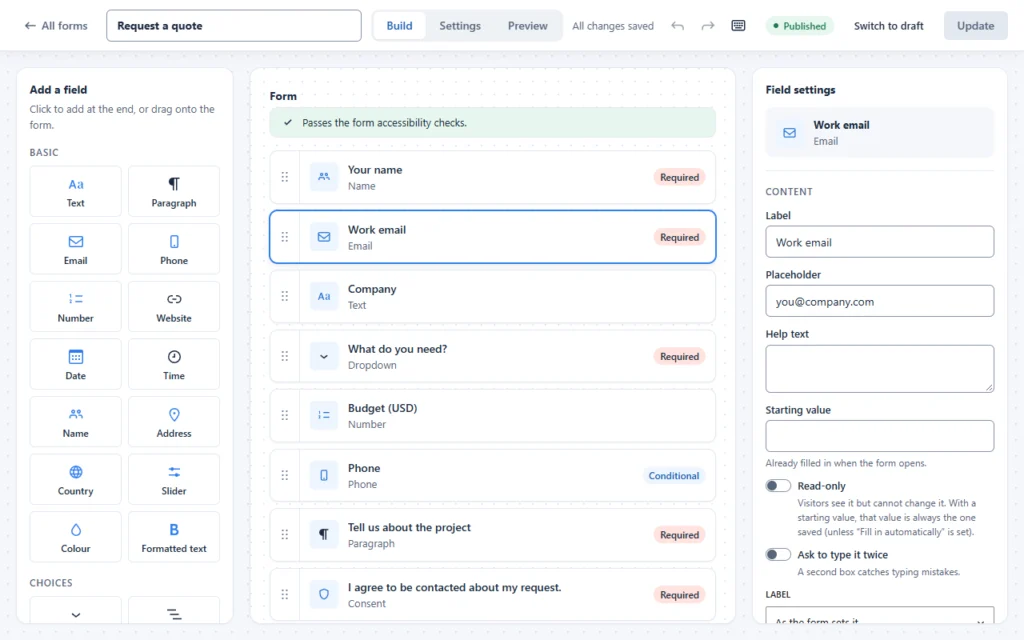
A dropdown or set of choices: “What do you need?” with your main services listed. This single field sorts the enquiry, lets you route it to the right person, and powers the conditional logic below. It is the most important field on a WordPress quote form.
5. Budget
Many businesses hesitate to ask, but a budget question saves time on both sides. Use ranges rather than an open number: “Under $1,000”, “$1,000–$5,000”, “Over $5,000”. People are more willing to pick a range than type an amount, and ranges are easier to act on.
6. Timeline
“When do you need this?” with options such as “As soon as possible”, “Within a month”, “In 1–3 months”, “Just exploring”. It tells you how urgent the lead is, and which quotes to send first.
7. Phone, only for larger jobs
A phone field that everyone must fill in costs conversions. A phone field that appears only when the budget is large, labelled “For bigger projects we like to call first”, feels reasonable. That is exactly what conditional logic is for.
8. Project details
One open text box: “Tell us about the project”. Add a short hint about what helps, such as sizes, quantities or a link to an example. This is where the visitor explains what the structured fields could not.
9. Consent
If you are in the EU or UK, or you send marketing, add a short consent line with a link to your privacy policy. Keep marketing consent separate and optional. Our guide to the GDPR contact form explains when you need it.
WordPress quote form examples by industry
The nine fields are a base. Each industry swaps one or two of them for questions that decide its price:
| Business | Extra fields that decide the price |
|---|---|
| Web design agency | Number of pages, existing site address, must-have features |
| Cleaning service | Property type, size in rooms or square metres, frequency |
| Printing | Product, quantity, size, finish, delivery date |
| Building and renovation | Type of work, postcode, photos of the space |
| Photography | Event type, date, location, hours of coverage |
| Consulting | Company size, the problem to solve, decision date |
Pick the two or three questions you always ask in your first reply today, and move them into the WordPress quote form. Everything else can wait for the conversation.
How to build a WordPress quote form in FillKite
- Go to FillKite → Add New and choose the Quote request template.
- Edit the service choices to match what you sell, and the budget ranges to match your prices.
- Click the Phone field, turn on Conditional logic, and set it to show only when the budget is in your larger ranges.
- Open the form’s Settings tab: set who receives the notification, turn on an auto-reply, and write the message shown after sending.
- Add the form to your pricing page and service pages with the block, the Elementor widget or the shortcode.
How to ask each question well
- Prefer choices to free text. Dropdowns, radio buttons and ranges are faster to answer and easier to compare, a point the Nielsen Norman Group’s form design guidelines make too.
- Use the visitor’s words, not yours. “Website redesign” beats “Digital transformation package”.
- Explain sensitive questions. A short hint under the budget field, such as “So we can suggest the right option”, reduces hesitation.
- Make optional fields clearly optional, and keep required fields to what you truly need.
- Put the open text box last, after the easy choices, when the visitor is already committed.
Keep it short with conditional logic
A WordPress quote form for several services can grow long if every service’s questions are shown to everyone. Conditional logic fixes this: show the questions for each service only when that service is chosen.
- Show “Number of pages” only when the service is Website design.
- Show “Current website address” only when the service is Redesign or Maintenance.
- Show “Phone” only when the budget is over your chosen range.
Each visitor sees a short form tailored to their request. Our guide to WordPress conditional logic shows how to set these rules as simple sentences.
When to split it into steps
If your WordPress quote form still has ten or more fields after trimming, consider splitting it into steps: “About you”, “Your project”, “Details”. An easy first step with a name and email gets people started, and a progress indicator shows how little is left. See our guide to the WordPress multi step form.
Build trust around the form
People hesitate before sharing a budget with a business they have just found. A few lines next to the WordPress quote form reduce that hesitation:
- “Free, no-obligation quote within one working day.”
- A short testimonial from a client with a similar project.
- What happens next: “We reply by email with a price range and a few questions.”
- A link to your privacy policy, and a promise not to share details.
These words cost nothing and often lift the number of quote requests more than any change to the fields.
Instant estimates or custom quotes?
Some businesses can price automatically: a fixed rate per room, per page or per item. For them, a calculation that shows an estimate as the visitor fills in the form can raise conversions, because people see a number immediately. FillKite Pro includes a Calculation field for this.
Most service businesses, though, price case by case. For them, a WordPress quote form that collects the right details, followed by a fast human reply with a range, works better than a calculator that cannot cover every case. If you do show an estimate, label it clearly as a starting point.
After the form is sent
The form is only the start of the sale. What happens next decides whether you win the job:
- An instant auto-reply that thanks them, repeats the service they asked about, and says when they will hear from you.
- A clear thank-you message or page with a useful next step, such as your portfolio or pricing guide.
- A fast personal reply with a price range, a question if you need one, and a proposed next step.
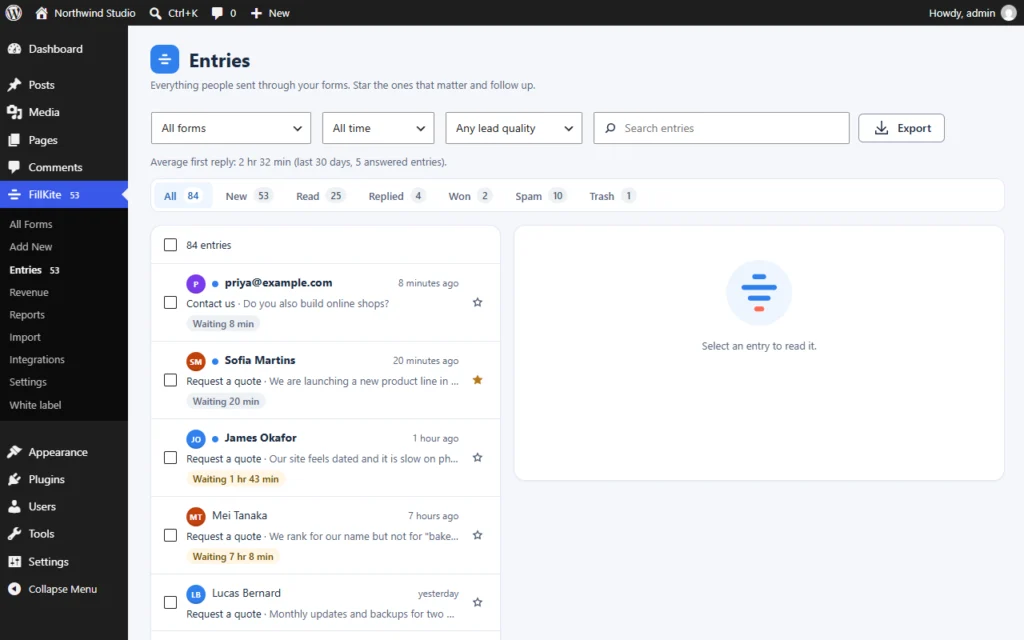
Speed matters most with quotes, because visitors often ask several businesses at once. FillKite shows how long each quote request has waited and can remind you before it goes cold. Our guide to lead response time explains why minutes count.
Write a first reply that wins the job
The reply to a WordPress quote form request should be specific, not a template that could go to anyone. A structure that works:
- Thank them by name and restate what they asked for, in their words.
- Give a price range based on what they told you, with what it includes.
- Ask one question if you need it to firm up the price.
- Propose a next step with a time: a call on Thursday, a visit next week, a detailed proposal by Friday.
Because the form already asked for the service, budget and timeline, you can write this reply in minutes. That is the whole point of a well-built quote form.
Keep spam out of your quote requests
Quote forms attract spam too: SEO pitches, fake budgets, bots filling every field. Spam mixed with real requests slows your replies. FillKite puts a honeypot and time check on every form and files caught entries in a separate Spam tab, so the inbox shows only real requests. Our guide to WordPress form spam covers the extra layers.
Where a WordPress quote form goes wrong
| Mistake | What happens | Do this instead |
|---|---|---|
| Only a message box | Vague requests, several emails before a price | Structured service, budget and timeline fields |
| Required phone for everyone | Fewer small enquiries | Show phone only for larger jobs |
| Open budget number | People skip it or guess | Budget ranges |
| Every service’s questions for everyone | Long, off-putting form | Conditional logic per service |
| “Submit” button | No sense of what happens next | “Get my quote” |
| No reply-time promise | Visitors keep shopping around | Say when they will hear back |
| Slow first reply | Competitor wins the job | Reply within hours, not days |
Where to place it
A WordPress quote form converts best where the visitor decides to ask for a price. Put it, or a button that opens it in a popup, at the end of each service page, next to your pricing table, and after case studies. A separate “Get a quote” page in the menu helps visitors who already know what they want. For each placement, pre-select the matching service where you can, so the visitor has one less question to answer.
Make it easy on a phone
Many quote requests are sent from a phone, often straight after someone sees your work on social media or in a search result. A WordPress quote form that is fine on a laptop can be painful on a small screen. Check four things:
- dropdowns and choices are large enough to tap without zooming;
- number and phone fields bring up the number keyboard;
- fields that sit side by side on a desktop stack on a phone;
- the button is visible without scrolling back and forth.
FillKite fields stack automatically on narrow screens and use the right input types, so a WordPress quote form built once works on every device. Test it on your own phone anyway, with mobile data, before you promote it.
Route each request to the right person
In a team, a quote request that reaches everyone often reaches no one. Use the service field to decide who gets the notification: design requests to the designer, maintenance to the support lead. In FillKite, each notification can have its own rules, so one WordPress quote form can serve several teams without anyone getting emails that are not theirs.
Measure and improve
Watch two numbers: how many visitors who see the form send it, and how many quotes become customers. FillKite’s forms list shows each form’s views and conversion rate over 30 days, and the Won status in the inbox tracks which quotes turned into work. If the form converts poorly, trim fields; if quotes rarely convert, look at which questions would help you qualify leads earlier. Our guide to form conversion rate covers the testing method.
A WordPress quote form checklist
- Every field helps you price the job; nothing is there “just in case”.
- Service, budget and timeline use choices or ranges, not free text.
- Phone and service-specific questions appear only when they apply.
- The button says what happens, such as “Get my quote”.
- Trust and a reply-time promise sit next to the form.
- An auto-reply confirms the request, and the notification reaches the right person.
- Spam is filtered into its own folder.
- You reply with a price range within hours, not days.
Run through the list once a quarter. Prices, services and the questions you need all change, and a WordPress quote form that matched your business last year may be asking the wrong things today.
Frequently asked questions
How many fields should a WordPress quote form have?
Usually six to nine visible fields. Use conditional logic for anything that applies only to some visitors, so each person sees the shortest form that still lets you give a price.
Should I ask for a budget?
Yes, as ranges rather than an open number. It saves time on both sides and lets you suggest the right option in your first reply.
Can a WordPress quote form calculate a price automatically?
For simple, fixed pricing, a calculation field can show an estimate as the visitor fills in the form. FillKite Pro includes a Calculation field. For custom work, a human quote is usually better.
Can I reuse one quote form across several pages?
Yes. Build it once and place it with the block, the Elementor widget or the shortcode on every service page. Entries from every page arrive in the same inbox, each with the page it came from.
Should a WordPress quote form allow file uploads?
If photos, plans or briefs help you price, yes. FillKite Pro adds a File upload field with type and size limits. Keep it optional so people without files are not blocked.
Where do quote requests go?
Into FillKite → Entries, with a status and reply timer for each, and to the email addresses in the form’s notifications. You can route each service to a different person.
Get quote requests you can price straight away. FillKite’s quote template, conditional logic and lead inbox turn vague enquiries into clear, fast quotes. Browse the form templates, see the lead inbox, or install FillKite free from WordPress.org.