Contact Form 7 Database: 3 Simple Ways to Save Entries
In short:
- Contact Form 7 does not save submissions. It only emails them. There is no Contact Form 7 database built in.
- Three simple ways to fix that: Flamingo (free, by the author of Contact Form 7), a database add-on such as CFDB7, or moving to a form plugin that stores entries itself.
- Add-ons save a copy; they do not give you statuses, reply tracking or spam separation in the same way an inbox does.
- Whichever you choose, entries saved from today onwards are all you will have. Past submissions that were only emailed cannot be recovered from WordPress.
- FillKite saves every entry in an inbox before any email is sent, and can import your Contact Form 7 forms in one go.
“Where is my Contact Form 7 database?” is one of the most searched questions about the plugin, usually asked right after a lead goes missing. The honest answer is that there is none. Contact Form 7 sends each submission by email and keeps nothing in WordPress.
This guide explains why, the three simple ways to save Contact Form 7 submissions, how they compare, and how to choose. It also covers exporting what you save, and what to do about the entries you have already lost.
Why Contact Form 7 has no database
Contact Form 7 was designed to be small and flexible. Its job is to build a form and send an email. Storing submissions was deliberately left to other plugins, which keeps Contact Form 7 itself simple. That design works well for developers who know to add storage. It surprises many site owners, who only find out when an email fails and there is no copy anywhere.
| What happens when someone sends a Contact Form 7 form | Without storage | With storage |
|---|---|---|
| Email sent to you | Yes | Yes |
| Copy saved in WordPress | No | Yes |
| Lead kept if the email fails | No | Yes |
| Spam you can review | No | Depends on the tool |
| Export to CSV | No | Yes |
Way 1: A Contact Form 7 database with Flamingo
Flamingo is a free plugin by the author of Contact Form 7. Install and activate it, and every new submission is saved in WordPress under a Flamingo menu, with messages that Contact Form 7’s spam checks flagged kept separately.
To set it up:
- Go to Plugins → Add New, search for Flamingo, install and activate it.
- Send a test message through your contact form.
- Open Flamingo → Inbound Messages and check the test is there.
- Look under the spam view too, so you know where flagged messages go.
Flamingo starts saving from the moment it is active. It does not import earlier submissions, because there is nothing in WordPress to import.
Good for: a quick, free Contact Form 7 database from the same author, with an address book of senders and a spam list.
Limits: it is a record, not a workflow. There is no reply timer, no Won or Replied status in the sense of a sales inbox, and the screens are basic. For many small sites that is enough.
Way 2: A Contact Form 7 database add-on such as CFDB7
Several free add-ons exist purely to create a Contact Form 7 database. The best known is Contact Form 7 Database Addon, often called CFDB7. It saves submissions to its own table and adds a screen where you can view them, delete them and export them as CSV. Some add-ons also save uploaded files.
Setup is similar: install and activate the add-on, send a test, and find the submission under the add-on’s menu. Most add-ons show one list per form, with a button to export it. Check whether the add-on stores uploaded files, if your forms have any, and where it keeps them.
Good for: storing and exporting submissions with a simple list per form.
Limits: like Flamingo, storage is the whole job. You still manage replies from email, and it is one more plugin to keep updated alongside Contact Form 7, a honeypot add-on and probably an SMTP plugin.
Way 3: Move to a form plugin that stores entries
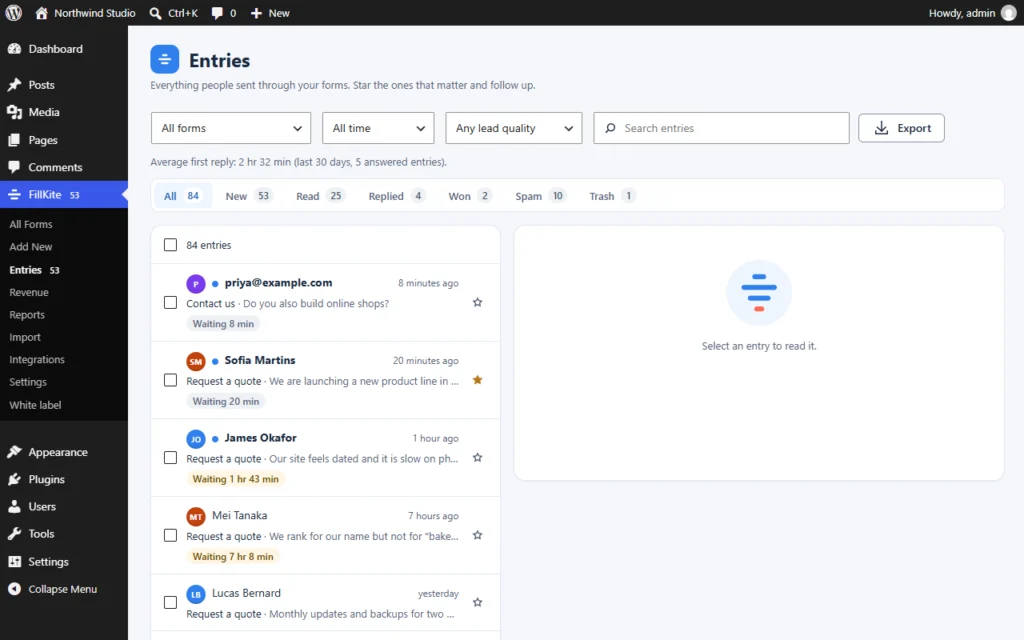
The third option is to replace Contact Form 7 with a form builder that saves entries as a core feature. In FillKite, every entry is stored in your WordPress database before any email is sent, and appears in FillKite → Entries, an inbox with statuses, notes, stars, search, a reply timer and exports.
Good for: sites where forms bring in paying work and you want to follow up every lead in one place.
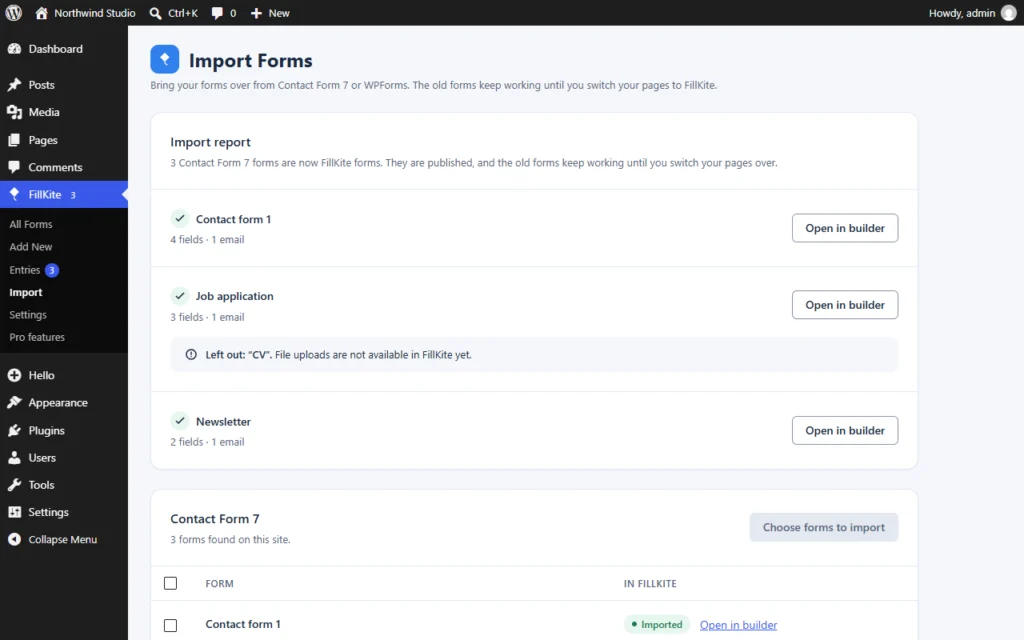
Limits: it is a switch, so it takes an hour or so to move forms and pages. You do not rebuild forms by hand: FillKite can import Contact Form 7 forms, including their fields, notifications and messages, and keeps the old forms working until you switch each page.
What a useful saved entry contains
A Contact Form 7 database copy is most useful when it saves more than the answers. Look for these when you choose a tool:
- the date and time of the submission;
- which form and which page it came from;
- whether it was flagged as spam, and why;
- any uploaded files, stored safely;
- for leads, where the visitor came from, such as a campaign tag.
FillKite saves the page, referrer and UTM campaign tags with every entry, without cookies, so you can later see which campaigns bring in enquiries.
The three options compared
| Flamingo | Database add-on | FillKite | |
|---|---|---|---|
| Keeps Contact Form 7 | Yes | Yes | No, replaces it |
| Saves submissions | Yes | Yes | Yes, before email is sent |
| Spam kept separately | Yes | Varies | Yes, with reasons |
| Statuses and reply timer | No | No | Yes |
| Failed email retries | No | No | Yes |
| Export | Yes | CSV | CSV, Excel, JSON, PDF |
| Extra plugins to maintain | One more | One more | Fewer overall |
The real cost of no storage
It is easy to think of a Contact Form 7 database as a nice extra. In practice it is insurance. Consider how often email goes wrong on a typical small site: a mailbox fills up, a password changes, a DNS record is edited, a host tightens its mail rules. Each of these can stop notifications for days before anyone notices. Without storage, every enquiry in that window is lost for good, and you never learn how many there were.
With a saved copy, the same incident is an inconvenience: you fix the email, open the Contact Form 7 database, and reply to everyone who wrote in the meantime, with an apology for the delay. The cost of adding storage is a few minutes; the cost of not having it is invisible until the day it matters.
Where the data actually lives
Every option above stores submissions in your own WordPress database, on your own hosting. Flamingo uses WordPress’s built-in post storage, database add-ons usually create their own table, and FillKite uses its own tables for forms and entries. None of them send your submissions to an outside service.
That matters for two reasons. Your backups must include the database for your Contact Form 7 database copy to be safe, and when you delete a plugin, its data may stay behind unless you remove it. Check each plugin’s uninstall behaviour before you switch tools.
How to choose
- You love Contact Form 7 and only need a copy: install Flamingo. Five minutes, free, done.
- You need CSV exports per form for a spreadsheet workflow: a database add-on fits.
- Your forms bring in customers and replies matter: move to a form plugin with an inbox, so saving, spam, email reliability and follow-up live in one place.
There is no wrong answer. What matters is that from today, every submission has a Contact Form 7 database copy somewhere other than an inbox.
Uploaded files
If your Contact Form 7 forms accept files, check what your storage tool does with them. Contact Form 7 attaches uploads to the notification email and then removes them from the server. Without a tool that saves files, the email attachment is the only copy. Some Contact Form 7 database add-ons save files alongside the entry; others do not. In FillKite Pro, uploads are kept privately by default, or in your own Google Drive, Dropbox or S3 bucket.
Keep notes with each saved message
A saved message is more useful when it carries its own history. Whenever you reply, call or send a quote, add a short note to the entry: what you did and what happens next. When a customer writes again weeks later, anyone on the team can open the original enquiry and see the whole story at once, instead of searching through several people’s inboxes. FillKite has private notes on every entry for exactly this; with simpler storage tools, keep a shared document or spreadsheet alongside your Contact Form 7 database.
Does storing submissions slow the site?
No, not noticeably. Saving a submission is one small database write when the form is sent. Visitors browsing your pages are not affected. What can slow a site is a plugin that loads its scripts on every page; check that any storage add-on only adds admin screens, and that your form plugin only loads its code on pages with a form.
What about submissions you already lost?
If Contact Form 7 only emailed past submissions, WordPress has no copy of them. Your only sources are the inboxes they were sent to. Search the recipient mailbox, including spam and archive folders, for the subject line your form uses. Check any other addresses in the form’s Mail settings, such as a CC to a colleague. If the emails never arrived, those entries are gone. It is frustrating, and it is the best argument for adding storage today.
Storage does not fix email delivery
Adding a Contact Form 7 database means you keep a copy of each submission. It does not make the notification emails more reliable. If they were landing in spam before, they still will, and you may not notice until you check the saved list. Fix both: keep the copy, and send email properly through SMTP with SPF, DKIM and DMARC in place. Our guide to WordPress SMTP walks through it.
FillKite handles the two together: every entry is saved before any email is sent, failed notifications are retried after 5 minutes, 30 minutes and 2 hours, and SMTP is built in.
Spam in your Contact Form 7 database
Once you save submissions, you save spam too, unless it is filtered. A Contact Form 7 database full of bot messages is hard to use. Keep spam protection on: a honeypot add-on, Akismet and the disallowed words list all help, and Flamingo keeps flagged messages apart. Our guide to Contact Form 7 spam covers the fixes in order.
Working from saved entries as a team
A saved list only helps if people use it. Agree that the saved copy is the one everyone checks, not individual inboxes, and that each person notes when they have replied. Add-ons are limited here; an inbox with statuses and notes makes it easy. Either way, a shared Contact Form 7 database stops the classic problem of two people replying to the same enquiry, or neither.
Exporting what you save
Once you have a Contact Form 7 database or an inbox, export it regularly. Flamingo and database add-ons offer export options; in FillKite, filter the inbox and use Export for CSV or Excel, or download a PDF of an entry. Keep exports with your site backups, so a problem with the site never takes your lead history with it.
Moving from an add-on to an inbox later
Many sites start with Flamingo or a Contact Form 7 database add-on and later want more. Moving is straightforward:
- Export the saved submissions from the add-on as CSV.
- Import your Contact Form 7 forms into FillKite.
- Import the CSV under Import → Entries from a CSV file, so old submissions sit in the new inbox.
- Switch each page to the new form and test it.
- Deactivate Contact Form 7 and the add-on once everything works, and remove their data when you are sure.
Storage and privacy
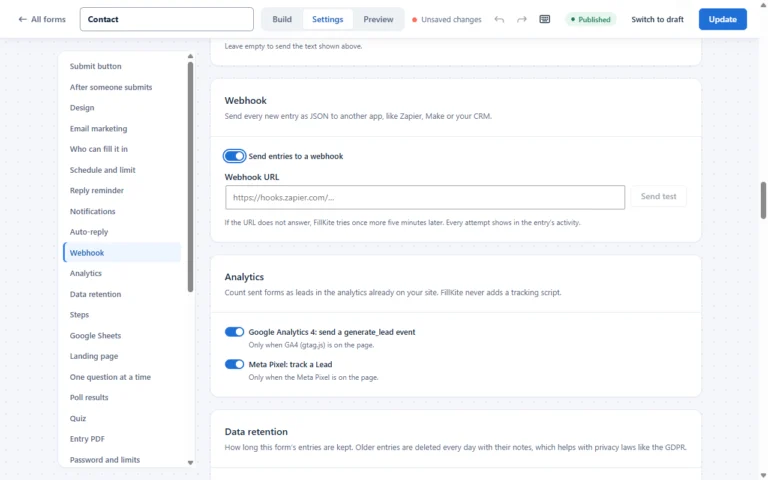
Saving submissions means holding personal data, so decide how long to keep it. Delete old entries on a schedule, limit who can view them, and mention storage in your privacy policy. FillKite has a Data retention setting per form that deletes older entries automatically; with add-ons, set a reminder to clear old records by hand. Our guide to the GDPR contact form covers retention in detail.
Test your Contact Form 7 database once a month
Storage can stop working quietly too, for example after a plugin update or a change of host. Once a month, send a test message through each form and check that it appears in your Contact Form 7 database, and that the notification email arrived. It takes two minutes and proves both halves of the system still work. Delete the test entry afterwards so it does not clutter your records.
A Contact Form 7 database checklist
- One storage tool is active: Flamingo, an add-on, or a form plugin with an inbox.
- A test submission appears in the saved list.
- Spam is filtered and kept apart from real messages.
- Notification emails are sent through SMTP and pass SPF, DKIM and DMARC.
- Saved entries are exported monthly and included in backups.
- Old entries are deleted on a schedule you have written down.
- Your privacy policy mentions that submissions are stored.
Where this goes wrong
| Mistake | What happens | Do this instead |
|---|---|---|
| Assuming Contact Form 7 saves entries | Leads lost when email fails | Add storage now |
| Two storage add-ons at once | Duplicate records, confusion | Pick one |
| Saving but never looking | Missed leads sit in a list | Review daily, or use an inbox |
| Keeping everything forever | Privacy risk grows | Delete old entries on schedule |
| No export or backup | History lost with the site | Export monthly |
Frequently asked questions
Does Contact Form 7 save submissions?
No. Contact Form 7 only sends submissions by email. To keep a copy in WordPress, add Flamingo or a database add-on, or use a form plugin that stores entries.
Where is the Contact Form 7 database?
There is no built-in Contact Form 7 database. Add-ons create one: Flamingo stores messages as WordPress data, and add-ons such as CFDB7 use their own table.
Can I recover old Contact Form 7 submissions?
Only from the email inboxes they were sent to. WordPress has no copy of submissions made before you added storage.
Can I use Contact Form 7 and FillKite at the same time?
Yes, during a switch. FillKite imports your Contact Form 7 forms and the old ones keep working until you change each page, so there is no gap in which forms stop saving.
Is Flamingo enough as a Contact Form 7 database?
For keeping a copy of every message, yes. It is free and made by the same author. If you also want statuses, reply tracking and retries for failed emails, you need an inbox-style tool.
Will switching to FillKite bring my old submissions?
If they were only emailed, there are none to bring. If you used a database add-on, export them as CSV and import them in FillKite under Import → Entries from a CSV file.
Stop losing Contact Form 7 submissions. FillKite saves every entry before any email is sent, in an inbox with statuses, spam separation and exports, and imports your Contact Form 7 forms in one go. Compare with Contact Form 7, read the import guide, or install FillKite free from WordPress.org.