GA4 Form Submission Tracking: 6 Simple Steps

In short:
- Tracking a GA4 form submission means sending an event to Google Analytics 4 each time a form is sent successfully, so you can count leads, not just visits.
- The most reliable way is an event sent by the form itself after a successful submission, rather than guessing from button clicks or page views.
- Google’s recommended event name for a lead form is
generate_lead. Mark it as a key event in GA4 to report on it as a conversion. - Six steps: have GA4 on the site, turn on the form’s lead event, submit a test, check it in DebugView, mark it as a key event, and compare with your form entries.
- FillKite sends a
generate_leadevent when GA4 is on the page, and saves UTM tags with every entry without cookies, so you can check GA4 against real leads.
Tracking each GA4 form submission is how you find out which pages, campaigns and channels bring in real enquiries. Without it, Google Analytics 4 shows you visitors and page views, but not the moment that matters most: someone asking to do business with you.
This guide explains the ways to track a GA4 form submission, why some of them count the wrong thing, and how to set up reliable tracking in six simple steps. The examples use FillKite, which sends the event for you.
Why track a GA4 form submission?
GA4 tells you where visitors come from. Form submission events tell you which of those visitors became leads. Put the two together and you can answer questions such as:
- Which ad campaign brings enquiries, not just clicks?
- Which blog posts lead readers to contact you?
- Do visitors from search convert better than visitors from social media?
- Did last month’s landing page change bring more enquiries?
Ad platforms such as Google Ads can also import GA4 key events, so your campaigns optimise for real leads rather than for cheap clicks.
Ways to track a GA4 form submission
| Method | How it works | Weakness |
|---|---|---|
| Thank-you page view | Count visits to the page shown after sending | Counts refreshes and direct visits; no page if the form shows a message instead |
| Button click | Count clicks on the Send button | Counts clicks that fail validation |
| GA4 enhanced measurement “form” events | GA4 guesses submissions automatically | Unreliable with modern forms that send without reloading |
| Tag Manager trigger | A trigger listens for a form event or element | Setup effort; breaks when the form changes |
| Event from the form plugin | The form sends the event after a successful submission | Needs a plugin that supports it |
The last method is the most accurate, because only the form knows for certain that a submission succeeded. A button click that ends with “Please fill in your email” is not a lead, and a GA4 form submission event should not count it.
The generate_lead event
Google lists generate_lead among its recommended GA4 events for lead generation. Using the recommended name, rather than inventing your own such as contact_form_sent, means GA4 and connected tools recognise it, and your reports stay consistent if you change form plugins later.
FillKite sends generate_lead for a GA4 form submission when you turn it on in a form’s settings. It only sends the event after your server has accepted the entry, so submissions that fail validation are never counted. The event also carries a form_id parameter, so you can tell forms apart, and if the form redirects to a thank-you page, FillKite waits a moment for GA4 to receive the event before the page changes.
How to track a GA4 form submission in 6 simple steps
1. Make sure GA4 is on your site
GA4 must already be installed, with Google’s tag (gtag.js) on the pages that have forms, either directly, through a plugin, or via Google Tag Manager. FillKite never adds a tracking script of its own; it uses the analytics you already have.
2. Turn on the lead event for the form
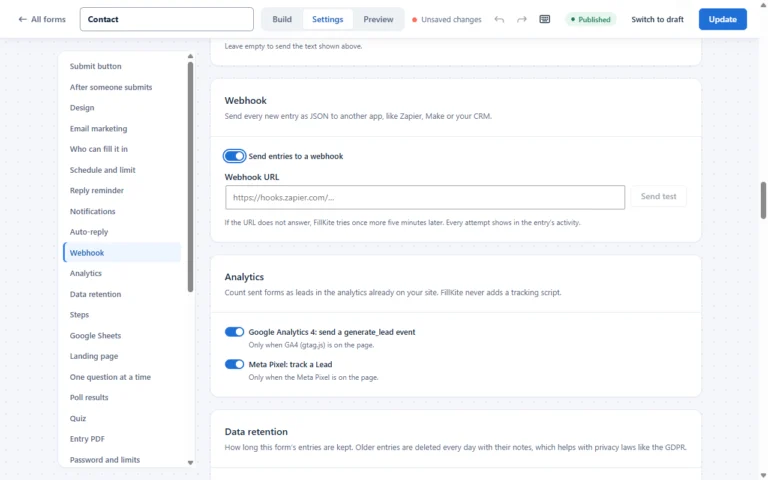
Open the form in the FillKite builder, go to the Settings tab and find Analytics. Turn on Google Analytics 4: send a generate_lead event. If you also run Meta ads, turn on Meta Pixel: track a Lead in the same place.
3. Send a test submission
Open the page with the form and send a real test entry. Use a browser without ad blockers for this test, because blockers stop analytics scripts entirely.
4. Check it in DebugView or Realtime
In GA4, open Admin → DebugView (with debug mode on) or the Realtime report. Within a minute you should see the generate_lead event. If you do not, check that GA4’s tag is on that page and that no consent banner is blocking analytics for your test.
5. Mark it as a key event
In GA4, go to Admin → Events, find generate_lead, and mark it as a key event (what GA4 used to call a conversion). From then on, each GA4 form submission appears in your conversion reports and can be imported into Google Ads.
6. Compare with your real entries
After a week, compare the number of GA4 form submission events with the entries in your form inbox for the same period. They will not match exactly, and that is expected; see below. But they should be in the same range. A big gap means something is wrong with the tracking.
Testing without fooling yourself
Testing analytics has a few traps. Your own visits may be filtered as internal traffic, so a test entry can be missing from standard reports while still appearing in DebugView. Ad blockers in your own browser block GA4 completely, which makes it look as if tracking is broken. And testing the same form many times can inflate your numbers for the day.
A clean approach: use a private window without extensions, send one test entry, confirm the event in DebugView, then check that the entry also arrived in your form inbox. Delete the test entry afterwards, and remember that one test key event in your reports is harmless.
GA4 form submission with Google Tag Manager
If your team manages all tracking in Google Tag Manager, you may prefer to send the GA4 form submission from there. You still want the trigger to fire only on success, not on button clicks. FillKite helps with that: after a successful submission, the form element fires a browser event called fillkite:submitted. A small custom HTML tag in Tag Manager can listen for it and push a generate_lead event to the data layer, and a GA4 event tag can then send it on.
Choose one route, not both. If you send the event from Tag Manager, leave the form’s own GA4 setting off, or every GA4 form submission will be counted twice.
Tracking several forms
Most sites have more than one form: contact, quote, newsletter. You usually want to see them separately. FillKite’s generate_lead event includes a form_id parameter with the form’s number. Register it as a custom dimension in GA4 (Admin → Custom definitions), and you can split every GA4 form submission report by form. Alternatively, use the page path dimension, since each form usually lives on its own page.
Decide whether every form counts as a lead. A newsletter sign-up is valuable but different from a quote request. You might turn the GA4 event on for quote and contact forms only, and track sign-ups in your email marketing tool instead.
Why GA4 and your inbox never match exactly
Your form inbox counts every entry that arrived. GA4 counts only the ones it could see. The GA4 number is usually lower because:
- visitors with ad blockers or strict privacy settings block GA4 entirely;
- visitors who decline analytics in a consent banner are not tracked, where consent mode applies;
- some sessions are filtered as internal or bot traffic.
That is why your form entries remain the source of truth for how many leads you got, and GA4 is the source for where they came from in aggregate.
Keep lead sources on the entry itself
Because GA4 cannot see every visitor, it helps to store the source with each entry too. FillKite saves the UTM campaign tags, the referring site and the landing page with every entry, kept for the visit only and without cookies. Open any lead in the inbox and you can see which campaign brought it, even if that visitor blocked analytics.
If visitors often land on one page and fill in a form on another, turn on Capture UTM on every page under FillKite → Settings → Tracking. It adds a tiny script, under 0.5 KB with no requests, so the original campaign is remembered until they reach the form.

The Meta Pixel too
If you advertise on Facebook or Instagram, the same logic applies to the Meta Pixel: count leads when the form succeeds, not when someone clicks a button. FillKite’s Meta Pixel: track a Lead option sends the standard Lead event after a successful submission, when the Pixel is already on the page. Use it alongside the GA4 form submission event, so both platforms count the same moment.
Do you still need a thank-you page?
With a proper GA4 form submission event, you no longer need a thank-you page just for tracking. A message shown in place of the form works fine, and the event records the lead. Thank-you pages are still useful for people: they can explain next steps, show related content or offer a booking link. If you keep one, avoid also tracking its page views as leads, or each lead will be counted twice.
Consent and privacy
Analytics events are personal data processing in many places. If you use a consent banner, respect it: GA4 should only receive events from visitors who agreed, or should run in a consent mode that limits what is sent. FillKite only sends the event when GA4 is already on the page, so it follows whatever consent setup your site uses. Our guide to the GDPR contact form covers the privacy side of forms.
A GA4 form submission checklist
- GA4 is installed on every page that has a form.
- Each lead form sends
generate_leadafter a successful submission, and only once. - No second method, such as button clicks or thank-you page views, counts the same leads.
generate_leadis marked as a key event in GA4.form_idis registered as a custom dimension if you want reports per form.- Consent settings are respected for analytics.
- GA4 counts are compared with real entries each month.
- UTM tags are saved on each entry as a backup for visitors GA4 cannot see.
Run through the list after any change to your analytics setup, a new consent banner, or a new form. A GA4 form submission setup that worked last year can break quietly when one of those changes.
Where GA4 form submission tracking goes wrong
| Problem | Cause | Fix |
|---|---|---|
| Twice as many events as entries | Two methods tracking the same thing | Keep one: the form’s own event |
| Events for failed submissions | Tracking button clicks | Track successful submissions only |
| No events at all | GA4 not on the form’s page, or blocked in testing | Check the tag and test without blockers |
| Events but not in conversions | Not marked as a key event | Mark generate_lead as a key event |
| Spam inflating the count | Some bots trigger client-side tracking | Most bots never run JavaScript; compare with real entries, which keep spam in its own tab |
| Different event names on each form | Custom names chosen ad hoc | Use generate_lead everywhere |
Reports worth building
Once GA4 form submission events are flowing, a few simple reports answer most questions:
- Leads by channel: the key event count by session default channel group. Shows whether search, ads, social or email bring enquiries.
- Leads by campaign: the same, by session campaign. Shows which campaigns earn their budget.
- Leads by landing page: which first pages lead to enquiries, useful for content planning.
- Lead rate by device: if mobile visitors convert far worse, the form may need work on phones.
Build them in GA4’s Explore section as free-form tables, save them, and check them monthly. Pair them with your form inbox, where the Won status shows which leads became customers, to see the full picture from click to sale.
Adding a value to leads
GA4 key events can carry a value, which lets reports show the estimated worth of leads, not just their number. If you know roughly what a lead is worth, for example the average sale multiplied by how often a lead converts, you can assign that value in GA4 or in Google Ads when you import the key event. Keep it simple and review it every few months as your conversion rate changes.
Put the data to work
If a form sends fewer leads than you expect, check its spam protection too: overly strict settings can block real people. Our guide to WordPress form spam explains how to balance it.
Once each GA4 form submission is tracked, use it. Compare conversion rates by channel and by landing page, move budget towards campaigns that bring leads, and look at which blog posts lead to enquiries. On the form side, the FillKite forms list shows each form’s views and conversion rate for the last 30 days, and our guide to form conversion rate explains how to improve it.
How to track form submissions in GA4: the quick answer
To track a GA4 form submission, or several, send an event when the form is successfully sent, then mark that event as a key event. In short:
- Make sure GA4 is on your site.
- Turn on the lead event for the form.
- Send a test submission.
- Check it in DebugView or Realtime.
- Mark generate_lead as a key event.
- Compare the count with your real entries.
The steps above explain each GA4 form submission step. A GA4 form submission is a successful send, so counting a successful send, not a click on the button, is what keeps the numbers honest.
Frequently asked questions
How do I track form submissions in GA4?
Send an event, such as generate_lead, after a form is sent successfully, then mark it as a key event in GA4. Check it in DebugView or Realtime, and compare the count with your real entries. Counting successful sends is more reliable than counting button clicks.
How do I track a GA4 form submission in WordPress?
Use a form plugin that sends an event after a successful submission, such as FillKite’s generate_lead event, then mark that event as a key event in GA4. It is more reliable than tracking button clicks or page views.
Is generate_lead the right event name?
Yes, for lead forms. It is one of Google’s recommended events, so GA4 and connected tools understand it.
Why does GA4 show fewer submissions than my form?
Ad blockers, declined consent and filtered traffic hide some visitors from GA4. Your form entries are the true count; GA4 shows the pattern.
Can I see which form a lead came from in GA4?
Yes. FillKite’s event includes a form_id parameter. Register it as a custom dimension in GA4 to split reports by form, or use the page path.
Will every GA4 form submission be counted if the form redirects?
FillKite waits briefly for GA4 to receive the event before moving to the thank-you page, so redirects do not lose it. Visitors who block analytics are still not counted.
Do I need Google Tag Manager?
No. If GA4 is on your pages, FillKite sends the event directly. Tag Manager is useful for other tracking, but not required for this.
Count real leads in GA4. FillKite sends a generate_lead event only for accepted entries, adds a Meta Pixel Lead if you want one, and saves UTM tags with every entry without cookies. Read about lead tracking, see every feature, or install FillKite free from WordPress.org.
Last updated: